

Copy and Delete Workflow Triggers
Copy and Delete Workflow Triggers
Manage workflow triggers efficiently by copying existing triggers to create variations and removing triggers that are no longer needed.What You'll LearnThis article explains how to copy and delete workflow triggers in Open Doors, helping you maintain organized automation while reducing the time needed to create similar trigger configurations.
You'll discover how to duplicate triggers with all their settings intact and remove triggers that are no longer relevant to your workflows.
Table of Contents1What Are Workflow Triggers?2Key Benefits3How to Copy a Workflow Trigger4How to Delete a Workflow Trigger5Best Practices6Frequently Asked Questions1What Are Workflow Triggers?
Workflow triggers are the starting points of your automation sequences. They define the specific events or conditions that initiate a workflow, such as a form submission, contact tag addition, appointment booking, or opportunity stage change.
Each workflow can have multiple triggers, allowing the same automation sequence to start from different entry points. Managing these triggers effectively ensures your workflows remain organized and respond to the right events.
2Key Benefits
The ability to copy and delete workflow triggers provides several advantages for managing your automation:
Time Savings, Create variations of existing triggers without rebuilding filter conditions and settings from scratch.Consistency, Ensure similar triggers maintain the same configuration standards by copying proven setups.Workflow Organization, Remove obsolete triggers to keep your automation clean and easier to understand.Error Reduction, Minimize mistakes by duplicating working configurations rather than recreating complex filter logic.3How to Copy a Workflow Trigger
Follow these steps to duplicate an existing workflow trigger:
Step 1Access Your WorkflowNavigate to Automation in your Open Doors account, then select Workflows. Open the workflow containing the trigger you want to copy.
Step 2Locate the Trigger MenuFind the trigger you want to copy in the workflow builder. Click the copy icon on the trigger card.
Step 3Select Copy OptionFrom the dropdown menu, select Copy. A duplicate trigger will be created immediately below the original trigger.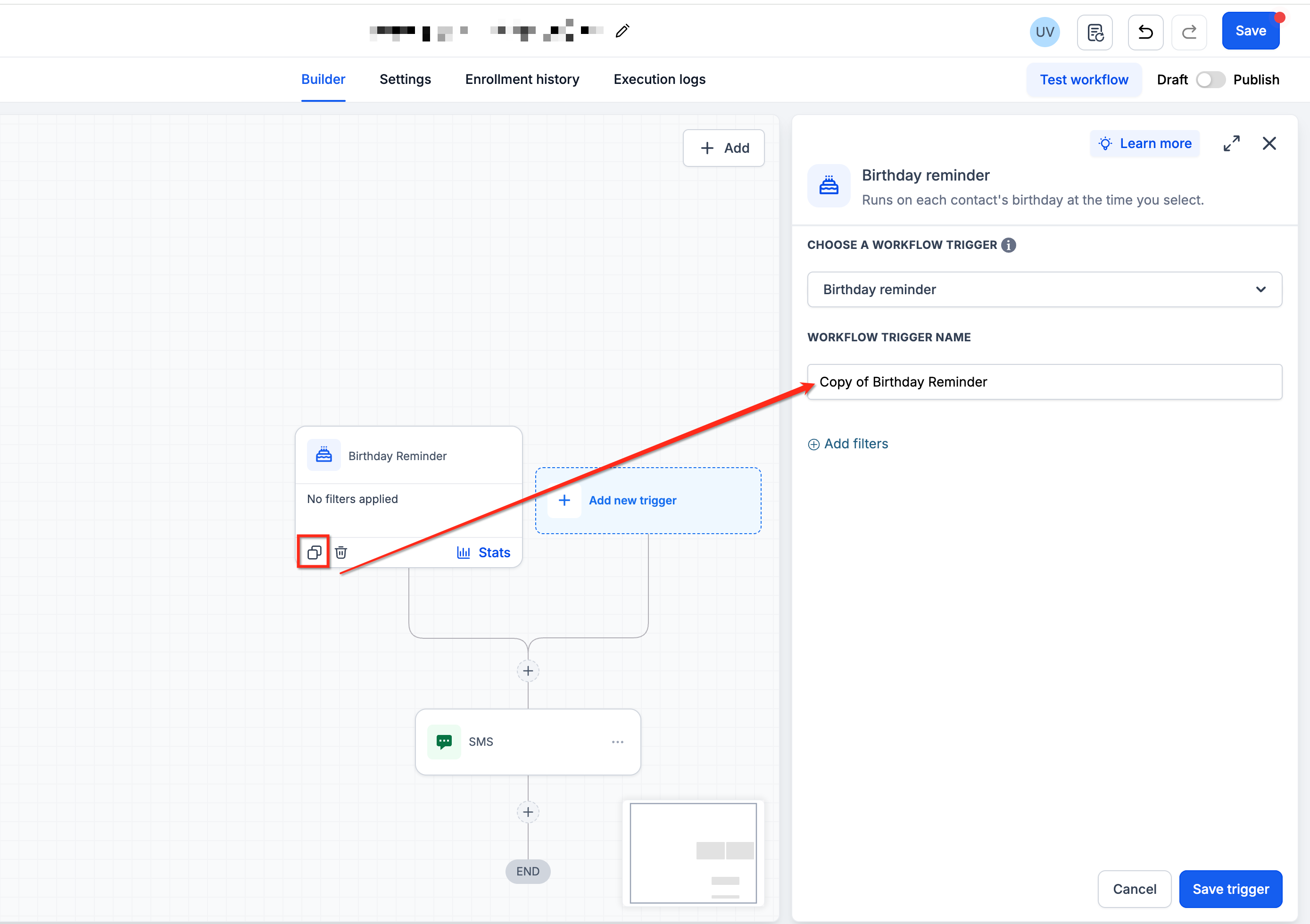
Click on the newly created trigger to open its settings. Update any filters, conditions, or settings to match your requirements. The copied trigger retains all configuration from the original but can be customized independently.
Step 5Save Your ChangesAfter making your modifications, click Save to preserve the changes. The workflow will respond to both the original and copied triggers according to their respective configurations.
Pro TipWhen copying triggers with complex filter conditions, verify all filter settings in the copied version to ensure they match your intended configuration.
4How to Delete a Workflow Trigger
Remove triggers that are no longer needed by following these steps:
Step 1Open the WorkflowGo to Automation → Workflows and select the workflow containing the trigger you want to remove.
Step 2Access the Trigger MenuLocate the trigger you want to delete. Click the bin menu icon on the trigger card.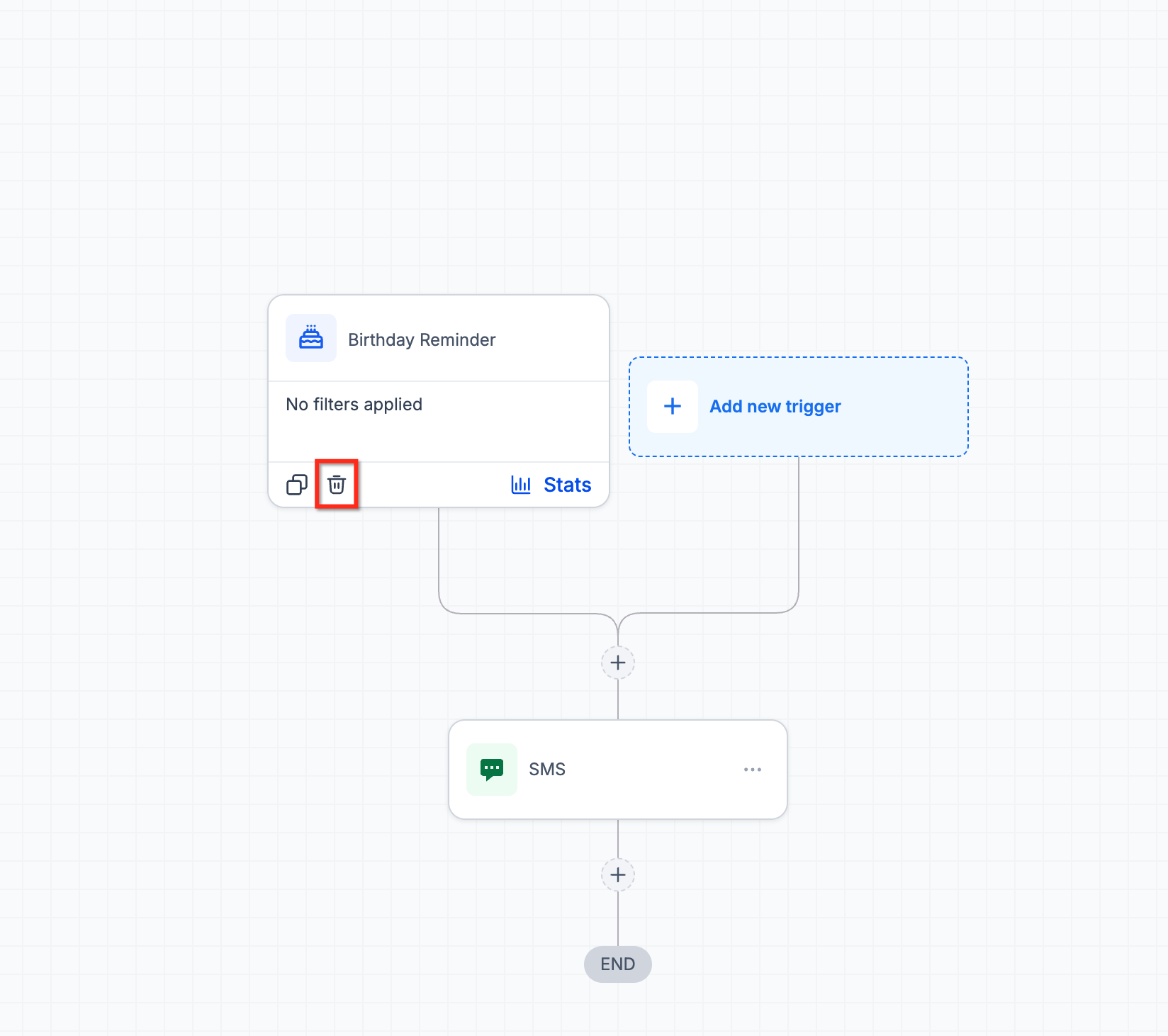
Select Delete. A confirmation dialog will appear.
Step 4Confirm DeletionReview the trigger details to ensure you're deleting the correct one. Click Confirm to permanently remove the trigger from the workflow.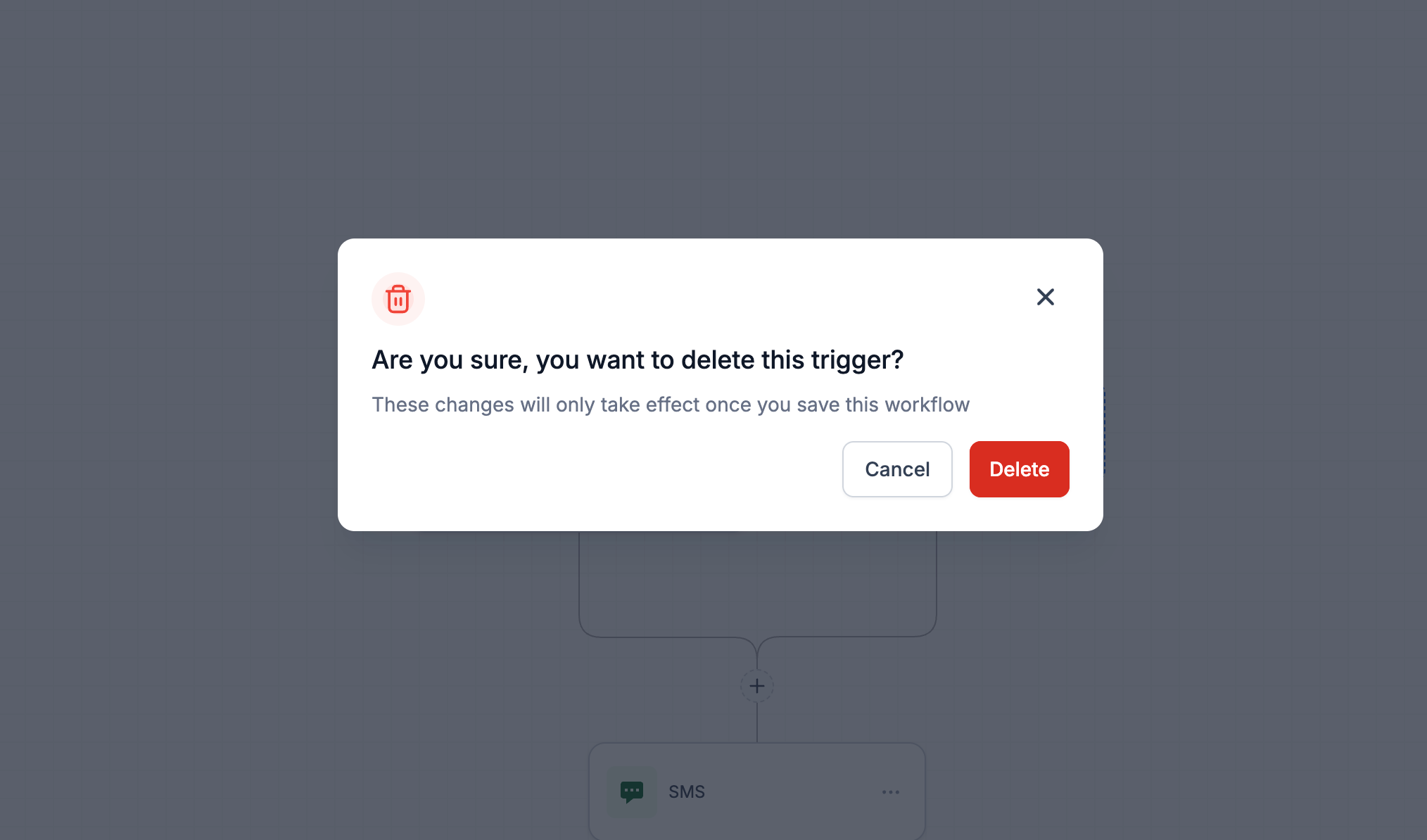
Deleting a trigger is permanent and cannot be undone. The workflow will no longer start from the deleted trigger's event. Existing workflow enrollments from that trigger will continue to run, but no new enrollments will occur from the deleted trigger.
5Best Practices
Follow these recommendations to effectively manage workflow triggers:
Name Triggers DescriptivelyWhen copying triggers, update the trigger name to clearly indicate its purpose. This prevents confusion when managing multiple similar triggers and makes workflow maintenance easier.
Review Before DeletingBefore deleting a trigger, review your workflow analytics to understand how many contacts have entered through that trigger. This helps you assess the impact of removal.
Test Copied TriggersAfter copying and modifying a trigger, test the workflow with a sample contact to ensure the trigger activates correctly and applies the intended filters.
Audit Triggers RegularlyPeriodically review your workflows to identify and remove triggers that are no longer aligned with your business processes. This keeps your automation efficient and easier to manage.
Document Trigger ChangesWhen copying or deleting triggers, consider documenting the reason in your workflow notes. This provides context for future team members who may need to understand your trigger strategy.
Need Help?If you encounter issues with copying or deleting workflow triggers, try these steps:
- Refresh your browser and try the operation again
- Verify you have edit permissions for the workflow
- Check that the workflow is not currently processing enrollments that might lock editing
- Contact Open Doors support through the in-app chat if the issue persists
Frequently Asked Questions
Q: Will copying a trigger duplicate the entire workflow?No. Copying a trigger only duplicates that specific trigger and its settings. The workflow actions, steps, and other triggers remain unchanged. The copied trigger will use the same workflow sequence as the original.Q: What happens to contacts already enrolled through a deleted trigger?Contacts who are already enrolled in the workflow will continue through the workflow steps as normal. Deleting a trigger only prevents new enrollments from that specific trigger event, it does not remove existing contacts from the workflow.Q: Can I copy a trigger to a different workflow?Currently, the copy function duplicates the trigger within the same workflow. To replicate a trigger in a different workflow, you'll need to manually recreate it with the same settings or use the workflow template feature to copy the entire workflow structure.Q: Do copied triggers retain all filter conditions?Yes. When you copy a trigger, all filter conditions, settings, and configurations are duplicated exactly. This includes any advanced filters, date ranges, tag conditions, or custom field criteria that were applied to the original trigger.Q: Can I undo a trigger deletion?No, trigger deletion is permanent and cannot be undone. If you accidentally delete a trigger, you will need to recreate it manually. To avoid accidental deletion, carefully review the trigger details in the confirmation dialog before confirming.Q: Is there a limit to how many triggers I can add to a workflow?While there is no strict technical limit, having too many triggers can make a workflow difficult to manage and troubleshoot. As a best practice, consider creating separate workflows if you find yourself managing more than 10-15 triggers, as this improves organization and performance monitoring.Q: Will copying a trigger affect workflow analytics?No. Each trigger maintains its own enrollment metrics. When you copy a trigger, the new trigger starts with zero enrollments and will track separately from the original trigger. This allows you to compare performance between the original and copied versions.Q: Can I copy multiple triggers at once?Currently, triggers must be copied individually using the three-dot menu on each trigger card. If you need to duplicate multiple triggers with similar configurations, copy one trigger first, then make the necessary adjustments before copying the next one.More in Workflow AI
- Workflow Trigger - Opportunity Changed
- Temporarily Disable Actions in a Workflow
- Copy Workflow Actions Across Workflows
- Workflow Actions - AI Extract Data
- AI Email Parser Action in Workflows
- How to Test Workflows Using AI Builder
- Web Search in the AI Agent Action
- Workflow AI Builder: Complete Guide to AI Workflows