

Hiding Countdown Timers in Apple Mail
Learn why Apple Mail can display a cached countdown image, how Hide Timer in Apple Mail works, how to enable the setting, and how timer-aware email links continue to route contacts based on the timer state.
Table of Contents1. What Is the Hide Timer in Apple Mail Setting?2. Why Apple Mail Can Show an Outdated Timer
3. How to Hide a Countdown Timer in Apple Mail
4. Frequently Asked Questions
5. Need Help?1
What Is the Hide Timer in Apple Mail Setting?
Hide Timer in Apple Mail prevents the countdown timer from displaying in Apple Mail when image caching could cause the timer to appear outdated. Other supported email clients can continue displaying the countdown normally.
Important: Hiding the countdown timer only changes whether the timer image is displayed in Apple Mail. It does not automatically change the campaign deadline or the destination used by your email calls-to-action.
2Why Apple Mail Can Show an Outdated Timer
Countdown timers in emails are displayed as animated images. Apple Mail may cache the timer image, which can prevent the countdown from refreshing normally when the same email is opened again. Hiding the timer in Apple Mail avoids showing a cached countdown image that may no longer match the current timer state.
3How to Hide a Countdown Timer in Apple Mail
Enable this setting when Apple Mail caching could cause the countdown image to display outdated timer information.
- Go to Marketing → Countdown Timers.
- Open an existing timer or click + Newto create one.
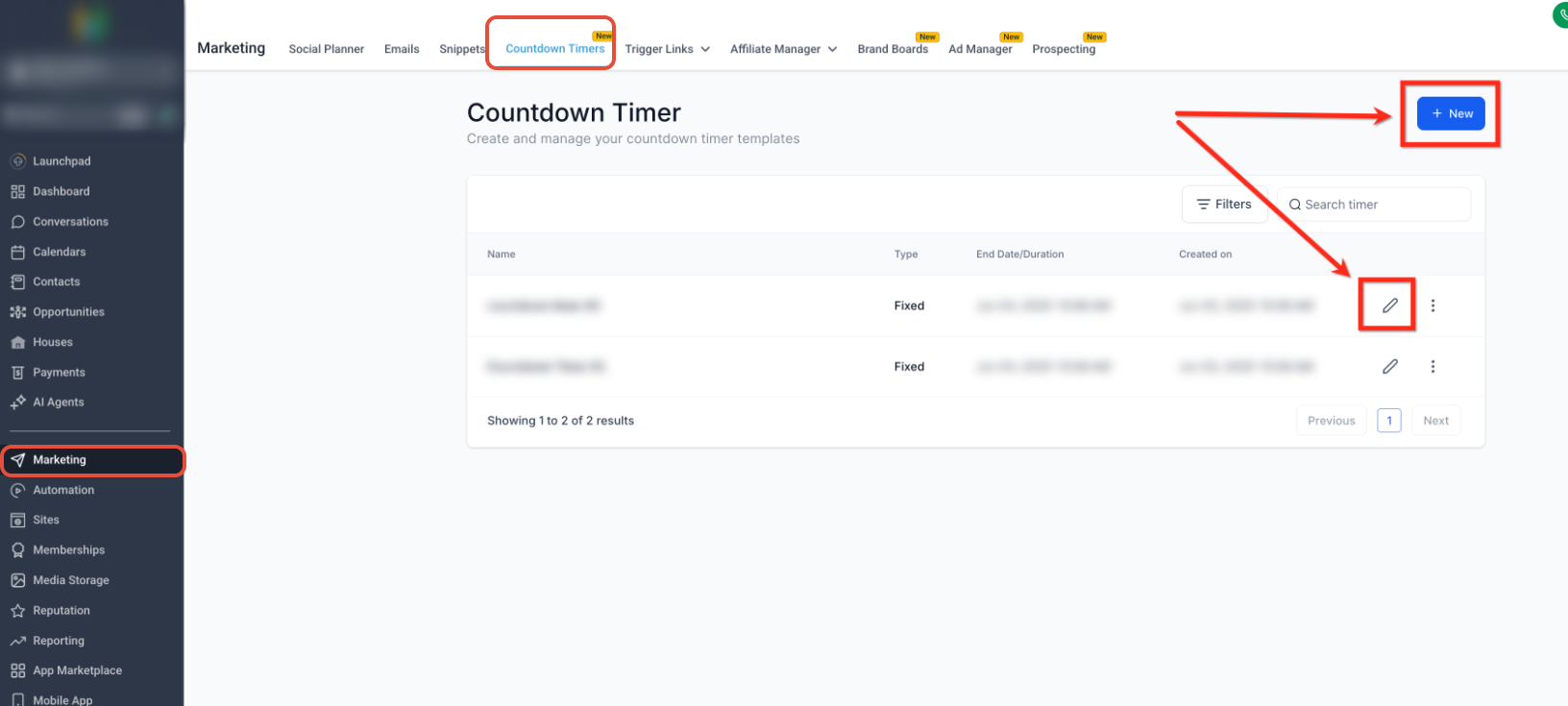
- Open the Styling settings.
- Scroll to the Apple Mail setting.
- Enable Hide Timer in Apple Mail.
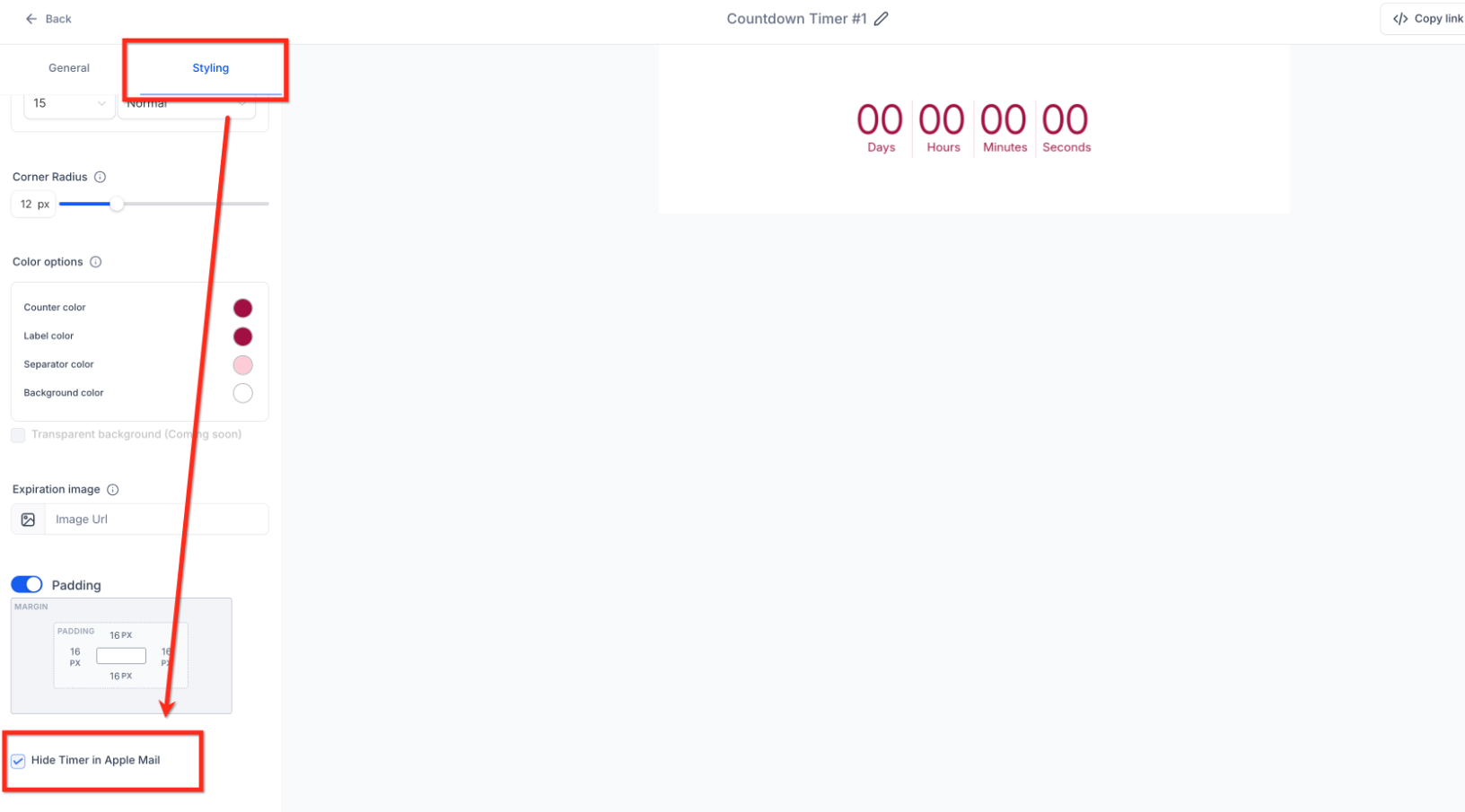
- Save the timer.
- Preview and test the email before sending it to your audience.
Frequently Asked Questions
Q: Why can Apple Mail show an outdated countdown timer?Apple Mail may cache the animated timer image instead of refreshing it normally when the email is opened again. This can cause the displayed countdown to no longer match the timer's current state.Q: Will the countdown still display in other email clients?Yes. Hide Timer in Apple Mail is specifically intended to hide the timer for Apple Mail users.Q: Can I enable this setting on an existing timer?Yes. Open the timer, enable Hide Timer in Apple Mail in the Styling settings, and save your changes.Q: Can my email CTA still route contacts based on whether the timer is active or expired?Yes. Hiding the timer image in Apple Mail does not prevent you from using the timer's Redirection Link on supported email buttons, images, or text links. The Redirection Link can route contacts to the configured Active or Expired destination based on the timer state.5Need Help?
- The timer still appears in Apple Mail: Confirm Hide Timer in Apple Mail is enabled in the timer's Styling settings and that the timer has been saved.
- The timer appears outdated in Apple Mail: Apple Mail may be displaying a cached timer image. Enable Hide Timer in Apple Mail to prevent the timer image from being displayed there.
- Your CTA needs different active and expired destinations: Configure the timer's Redirection Link with the appropriate Active and Expired destinations.
- Still need assistance? Contact your administrator or support team with the affected timer and email details.
More in Countdown Timer
- Limitations of Recurring Timer Wait Time Behaviour
- Timezone Adaptation in Countdown Timers
- How to Create a Fixed countdown Timer
- How to Use Countdown Timers in Emails
- How to Use Wait Time in Recurring Timer
- How to Use Countdown Timers in Funnels
- Guide: Dynamic Countdown Timer
- How to Copy the Code of Countdown Timers