

Working Hours for Conversation AI
Working Hours for Conversation AI
Configure business hours to control when your AI agents respond to contacts and automatically route conversations based on your operating schedule.What You'll LearnThis article explains how to set up working hours for Conversation AI agents, enabling you to define when your AI should actively respond to contacts and what happens when contacts reach out outside those hours.
You'll learn how to configure time zones, set daily schedules, handle after-hours contacts, and manage multiple AI agents with different operating schedules.
Table of Contents1What are Working Hours for Conversation AI?2Key Benefits3How Working Hours Affect AI Behavior4How to Configure Working Hours5After-Hours Contact Handling6Frequently Asked Questions1What are Working Hours for Conversation AI?
Working Hours is a configuration feature that allows you to define the specific days and times when your Conversation AI agents are actively responding to contacts. This ensures your AI operates according to your business schedule, providing appropriate responses during operating hours and managing expectations when your business is closed.
Each AI agent can have its own working hours schedule, making it possible to run different AI assistants with different availability patterns based on departments, services, or geographic regions.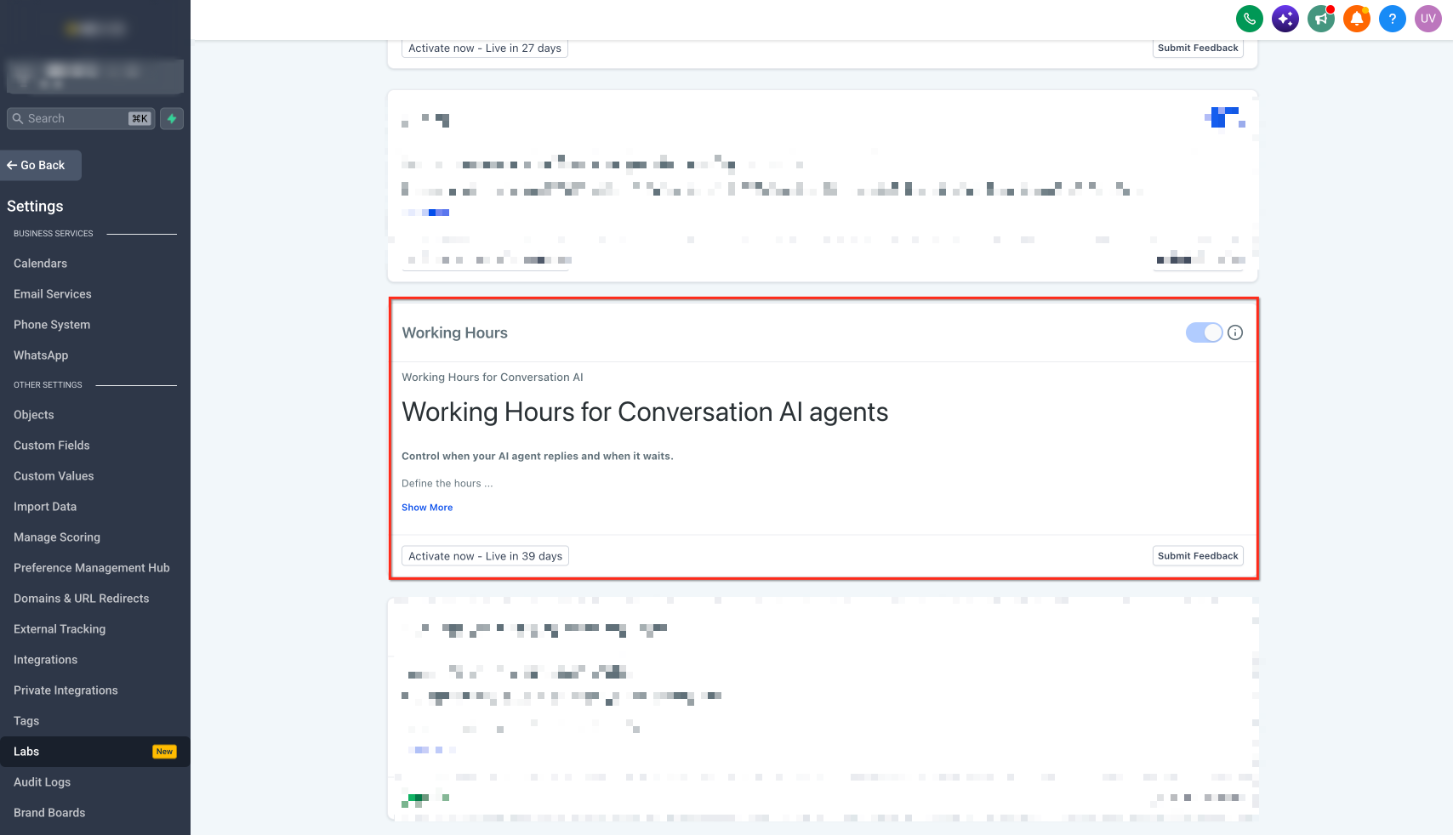
Key Benefits
Configuring working hours for your AI agents provides several operational advantages:
Professional Boundaries, Set clear expectations with contacts about when they can expect AI assistance versus human follow-upAppropriate Routing, Automatically direct after-hours contacts to workflows, voicemail, or notification systems instead of AI engagementTime Zone Accuracy, Ensure your AI respects local business hours regardless of where contacts are locatedResource Optimization, Prevent unnecessary AI interactions during times when human staff aren't available for escalationFlexible Scheduling, Configure different hours for different days to match your actual operating schedule3How Working Hours Affect AI Behavior
When you configure working hours, your AI agent behaves differently based on whether the current time falls within or outside the defined schedule:
During Working HoursThe AI agent responds normally to all incoming contacts according to its configured instructions and conversation flows. All standard AI capabilities are active.
Outside Working HoursThe AI agent will not initiate responses. Instead, you can configure alternative actions such as adding contacts to specific workflows, sending them to voicemail, or triggering notifications to your team for follow-up during business hours.
ImportantWorking hours are evaluated based on the time zone you configure for the AI agent. Make sure to select the correct time zone to match your business location.
4How to Configure Working Hours
Follow these steps to set up working hours for your Conversation AI agent:
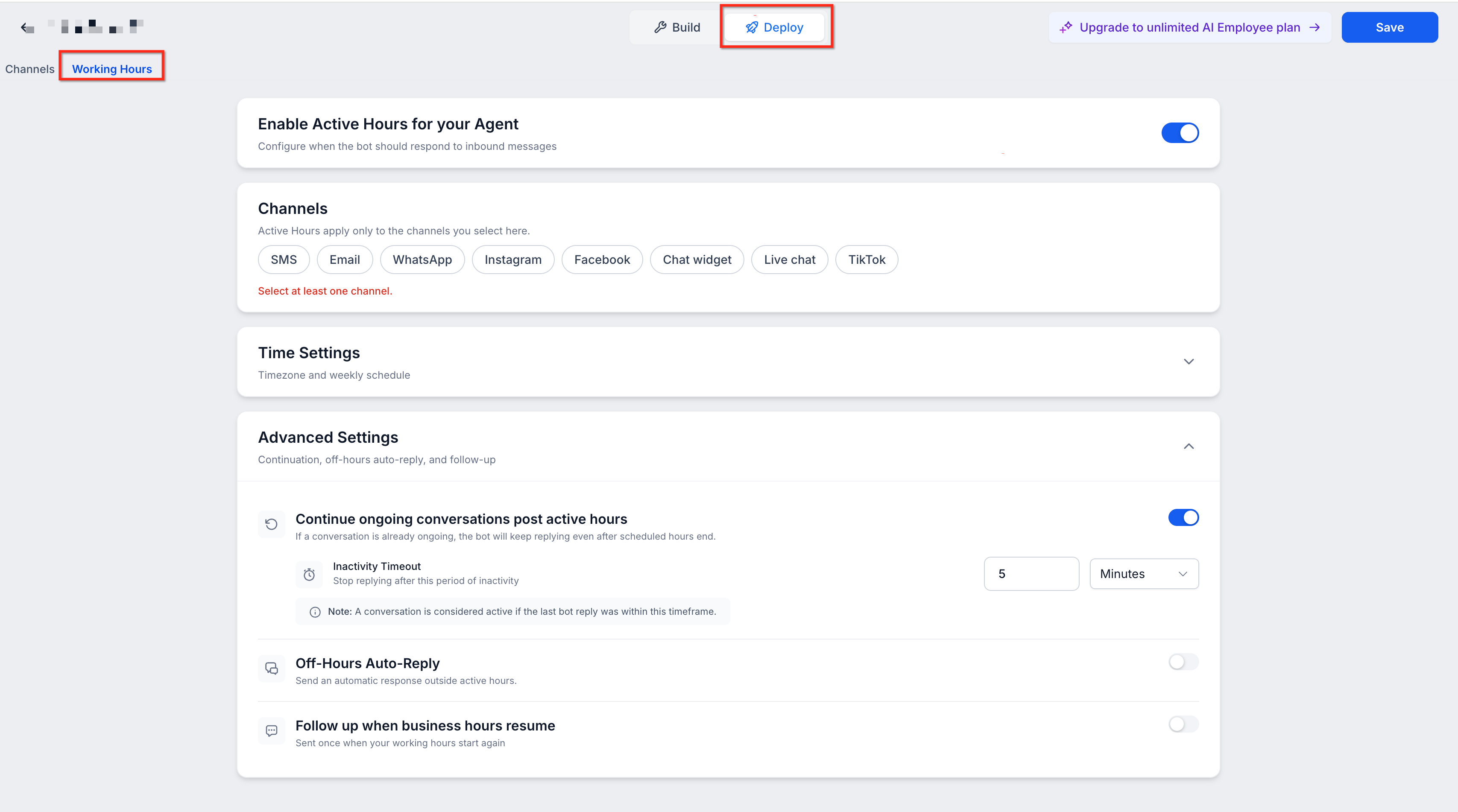
Step 1Access AI Agent SettingsNavigate to Settings → Conversation AI in your Open Doors account. Select the AI agent you want to configure from your list of existing agents.
Step 2Locate Working Hours SectionWithin the AI agent configuration screen, scroll to find the Working Hours section. This is where you'll define when your AI is active.
 Step 3Select Your Time Zone
Click the Time Zone dropdown and select the time zone that matches your business location. All working hours will be evaluated against this time zone.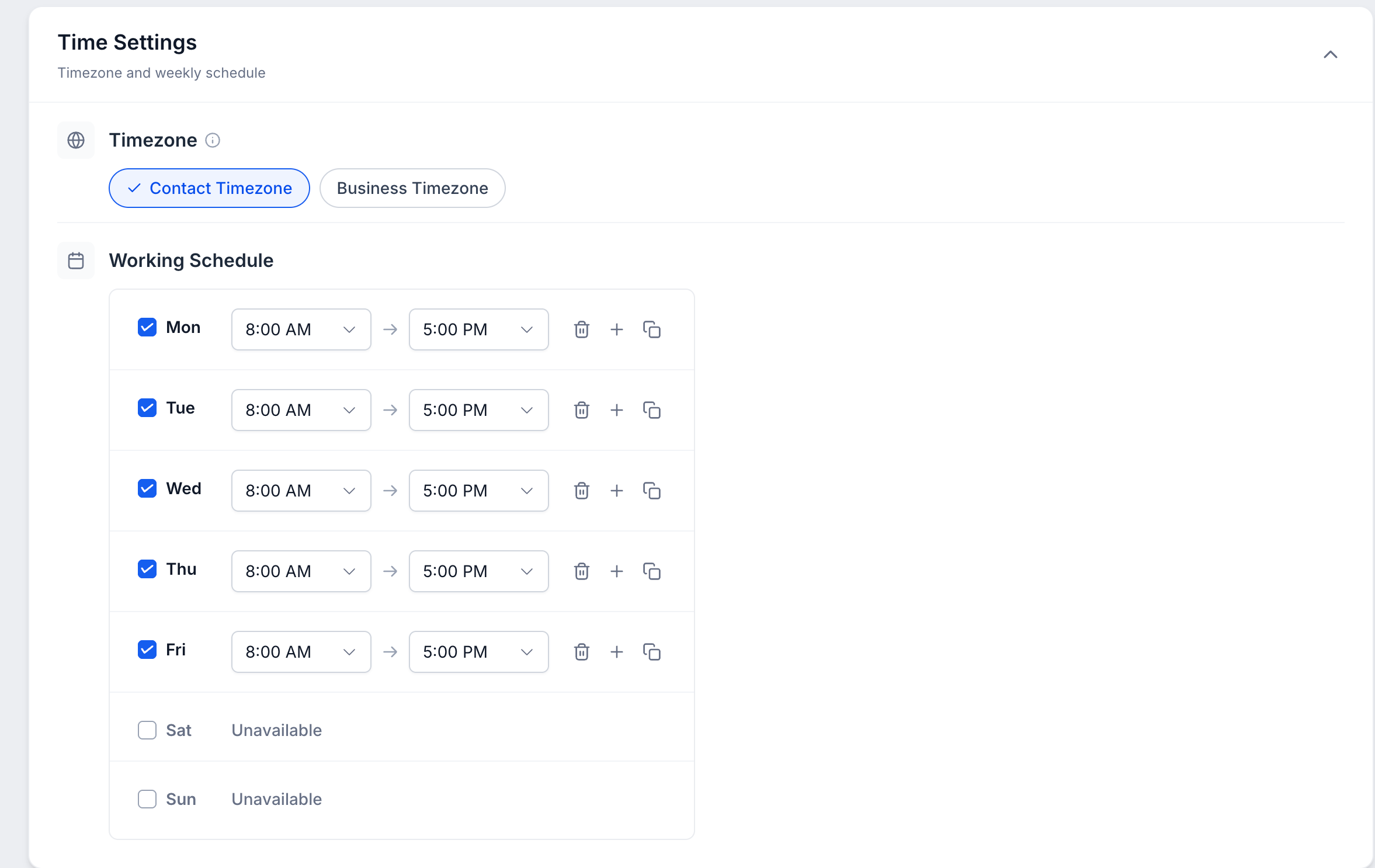
For each day of the week:
- Check the box next to the day to enable working hours for that day
- Set the start time using the first time picker
- Set the end time using the second time picker
- Leave a day unchecked if your business is closed that day
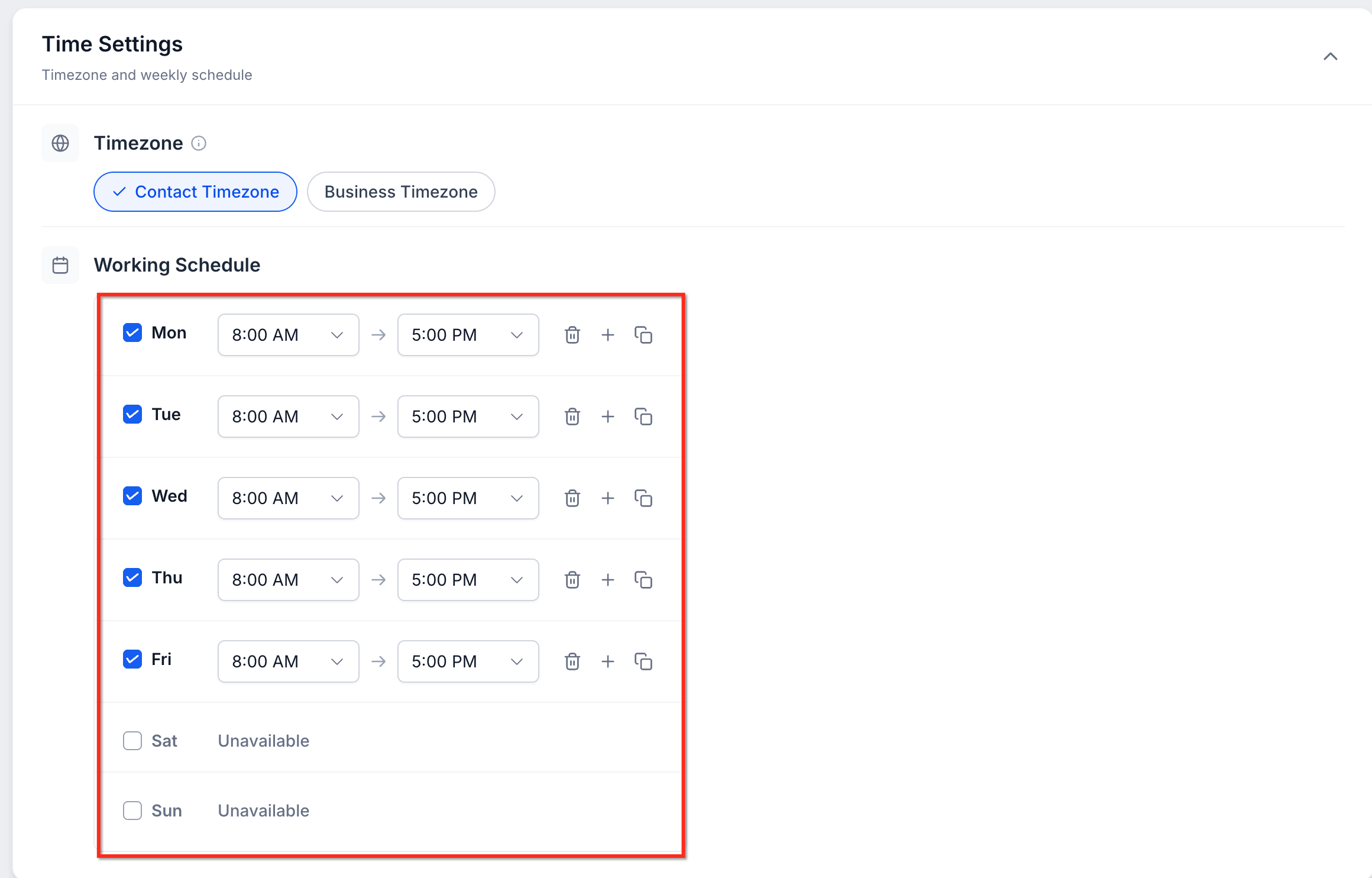
Click Save or Update at the bottom of the AI agent settings page to apply your working hours configuration. The AI agent will immediately begin following the new schedule.
NoteYou can configure different hours for different days. For example, you might have extended hours on weekdays and shorter hours on weekends, or be closed completely on certain days.
5After-Hours Contact Handling
When contacts reach out outside your configured working hours, you have several options for managing their interactions. The AI agent won't respond, but you can set up alternative actions to ensure contacts are handled appropriately.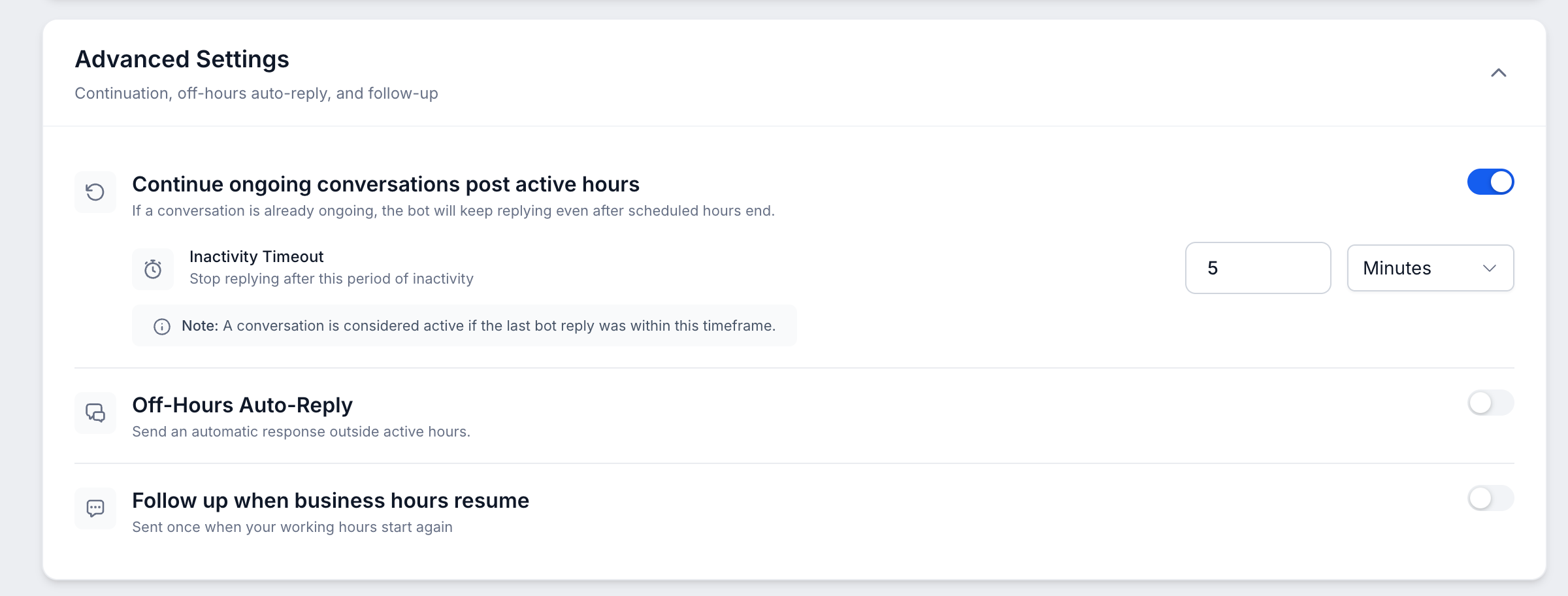
Configure a workflow that adds after-hours contacts to a queue for human follow-up when your team returns. This ensures no contact is missed and all inquiries receive attention.
Send to VoicemailFor phone-based AI agents, route after-hours calls to voicemail with a message indicating when the contact can expect a callback.
Trigger Team NotificationsSet up notifications to alert team members about after-hours contact attempts via email or SMS, allowing for prioritized responses when business resumes.
Create Contact RecordAutomatically create or update contact records with tags indicating after-hours inquiry, making it easy to identify and follow up with these contacts systematically.
TipConsider using workflow automation to send an immediate auto-response message to after-hours contacts acknowledging their inquiry and setting expectations for when they'll receive a proper response.
Need Help?If you need assistance configuring working hours for your AI agents or have questions about after-hours handling:
- Navigate to Settings → Conversation AI and review your time zone settings
- Check that your working hours match your intended business schedule
- Test the configuration by viewing your AI agent at different times of day
- Contact Open Doors support through the in-app help widget for personalized assistance
Frequently Asked Questions
Q: Can I set different working hours for different AI agents?Yes. Each AI agent has its own working hours configuration. You can create multiple AI agents with different schedules to support different departments, services, or geographic regions.Q: What happens if I don't configure working hours?If you don't configure working hours, your AI agent will remain active 24/7 and respond to all incoming contacts at any time. Working hours are optional but recommended for businesses with defined operating schedules.Q: Can I have different hours on different days of the week?Yes. You can set unique start and end times for each day of the week. You can also disable specific days entirely by leaving them unchecked, which is useful for weekends or holidays.Q: How do I handle holidays or temporary schedule changes?You can manually update your working hours configuration at any time. For holidays, you can temporarily uncheck the affected days or adjust the hours. Remember to update the settings again when you return to your normal schedule.Q: Does the time zone setting affect how contacts see my business hours?The time zone setting determines when the AI agent is active based on your business location. It does not automatically communicate your hours to contacts. Consider mentioning your business hours in your AI agent's instructions or after-hours messages to set proper expectations.Q: Can I test my working hours configuration before it goes live?While there is no preview mode, you can verify your configuration by checking the working hours display in the AI agent settings. The system evaluates hours in real time, so your changes take effect immediately upon saving.Q: Will the AI agent respond to ongoing conversations that started during business hours but continue after hours?Once working hours end, the AI agent stops responding to new messages even in ongoing conversations. If you need to handle active conversations differently, consider building this logic into your AI instructions or using workflow automation to transition these contacts appropriately.Q: Can I set up working hours to span midnight?Yes. If your business operates across midnight (for example, 10:00 PM to 2:00 AM), you can configure the end time to be earlier than the start time. The system will correctly interpret this as spanning into the next day.More in Conversation AI
- AI Message Details: View & Edit AI Responses
- Bot Actions - Add Contact Info
- Trigger a Workflow from AI Conversations (Bot Goals Guide)
- AI Bot Goals Setup and Customization Guide
- Manage Contact-Level AI Bot Settings
- Automating AI Bot Assignment and Status Using Workflows
- Collect Contact Details Using AI Prompt Setup
- Control Automated Replies with Stop Conditions
- Introduction to Multiple Knowledge Bases in Conversation AI
- Transfer Bot Action
- Guided Form Bot Setup for AI Conversations
- Conversation AI Auto Follow-up