

WhatsApp Onboarding Failure: “Please create a new WhatsApp Business Account since a payment method already exists for the current WhatsApp Business Account”
If you encounter the error message:
“Please create a new WhatsApp Business Account since a payment method already exists for the current WhatsApp Business Account.”
This means that your existing WhatsApp Business Account (WABA) already has an active payment method associated with it.
Meta does not allow a WABA with an existing payment method to be connected again through another platform. Therefore, the onboarding process will fail if you try to reuse that WABA.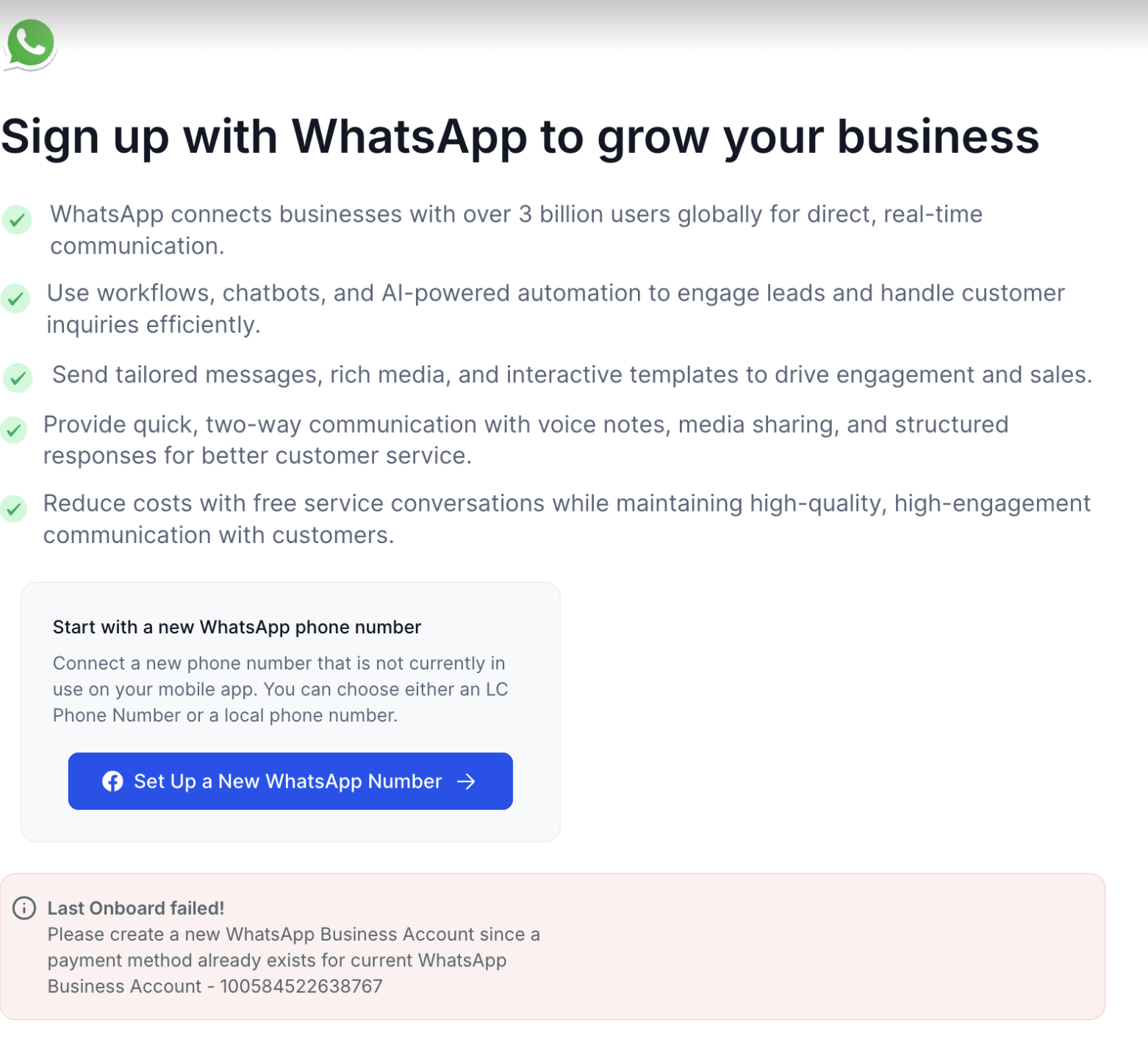
Why This Happens
This error occurs because:
The WABA you are trying to connect has already been used previously (either directly in Meta or through another Business Solution Provider).
Meta prevents connecting a WABA that already has a billing setup or payment method to another BSP (Business Solution Provider) to avoid duplicate billing.
How to Fix the Issue
To successfully complete onboarding, you need to create a new WhatsApp Business Account (WABA) under your existing Meta Business Manager.
Follow the steps below:
Step 1: Go to Your Meta Business Settings
Visit Meta Business Settings.
Log in using the Facebook account that manages your business assets.
Step 2: Create a New WhatsApp Business Account
In the left-hand menu, go to Accounts → WhatsApp Accounts.
Click on + Add.
Select Create a New WhatsApp Business Account.
Enter a unique name for the new account (example: YourBusinessName-New).
Complete the setup prompts.
Step 3: Return to Whatsapp Onboarding Flow
Go back to your WhatsApp onboarding flow.
When prompted to select a WhatsApp Business Account, choose the newly created WABA.
Continue the onboarding process normally.
Additional Tips
Do not delete your old WABA if it’s linked to other services or campaigns.
If you are unsure which payment method is attached, visit Meta Payment Settings to review existing setups.
Always use a new WABA for onboarding if you’ve previously connected the same number with another provider.
More in Setup
- How to Enable WhatsApp in your account?
- WhatsApp FAQs
- Marketing Opt-out Button to Your Message Template
- WhatsApp - Workflow Integration
- Important Update: : WhatsApp Marketing Messages to U.S. Numbers Paused Starting April 1, 2025
- Important Update: WhatsApp Marketing Templates Pause in the U.S. Starting April 1, 2025
- WhatsApp 30 Days Free Subscription Trial Promotion
- How to troubleshoot Failed to send OTP to verify Whatsapp number on the sub-account
- Whatsapp Error: Business account is restricted from messaging users in this country
- Whatsapp Error: Your WhatsApp Business account is locked. To unlock your account, visit Business Support Home
- Whatsapp Error : You have requested code too many times. Please try again later.
- WhatsApp Error: (#132000) Number of Parameters Does Not Match the Expected Number of Params