

How to Send Inbound SMS Notifications via a Workflow
Inbound SMS messages are received and stored in the Conversations tab. A phone number's call-forwarding settings do not automatically forward inbound SMS messages to another phone number.
If your team also needs an SMS alert when a contact replies, you can create a Customer Replied workflow that sends a separate internal SMS notification containing the inbound message. This article explains how to configure the trigger, add the message content, manage repeat replies, and troubleshoot common issues.
Table of ContentsWhat is Inbound SMS Notification Forwarding? Key Benefits of Inbound SMS Notifications How the Workflow Works How to Set Up Inbound SMS Notifications Configure Re-entry for Repeated SMS Replies Troubleshooting Frequently Asked Questions Need Help?What is Inbound SMS Notification Forwarding?
Inbound SMS notification forwarding uses a workflow to alert internal users when a contact sends an SMS. The original message remains in Conversations, while the workflow creates a separate internal notification containing information from that message.
This is different from call forwarding. Configuring a forwarding phone number for calls does not automatically forward inbound text messages to that same destination.
Key Benefits of Inbound SMS Notifications
Internal SMS notifications help team members stay aware of inbound replies even when they are not actively monitoring Conversations. Dynamic values can include the contact and message information needed to understand who replied and what they said.
- Faster Response Awareness: Alert team members when a contact sends an inbound SMS.
- Message Context: Include dynamic values such as the contact's name and inbound message body.
- Flexible Recipients: Send internal notifications to applicable users, roles, or teams supported by the Internal Notification action.
- Channel Control: Use Reply Channel = SMS so replies from other channels do not trigger the same SMS notification workflow.
How the Workflow Works
The workflow listens specifically for inbound SMS replies and then sends a new internal notification to your selected recipient. The contact's original SMS remains available in Conversations and is not moved or replaced.
- A contact sends an inbound SMS.
- The message appears in Conversations.
- The Customer Replied trigger detects the reply.
- The Reply Channel = SMS filter confirms the message came from SMS.
- The workflow sends an Internal Notification containing the message details.
The workflow sends a new internal notification. It does not natively forward the original SMS thread through the phone number's call-forwarding setting.
How to Set Up Inbound SMS Notifications
Proper trigger filters ensure the workflow reacts only to inbound SMS replies, while the Internal Notification action determines who receives the alert and what information is included. Test the workflow before relying on it for live conversations.
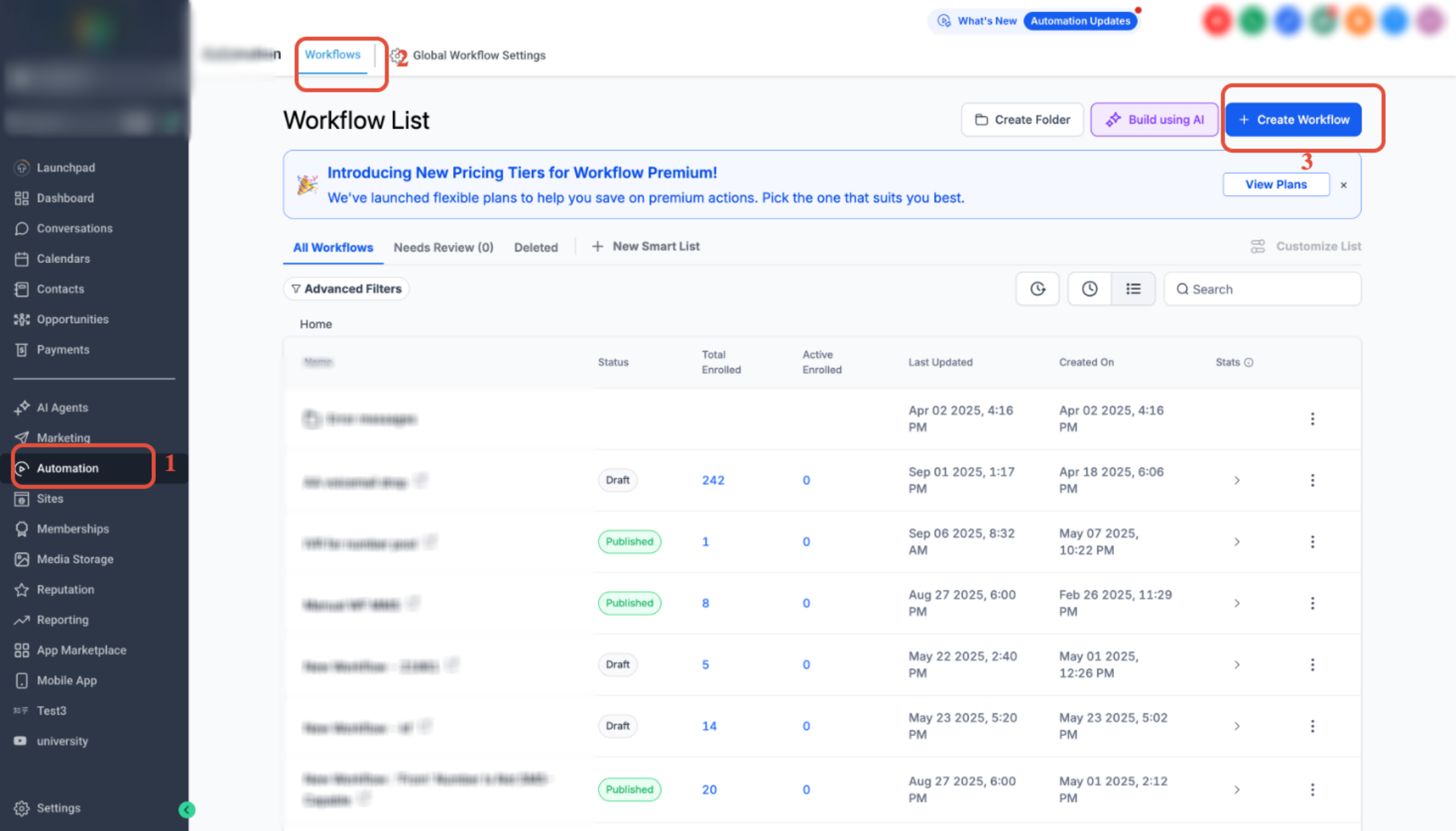
Step 1Create a New WorkflowGo to Automation → Workflows → Create Workflow.
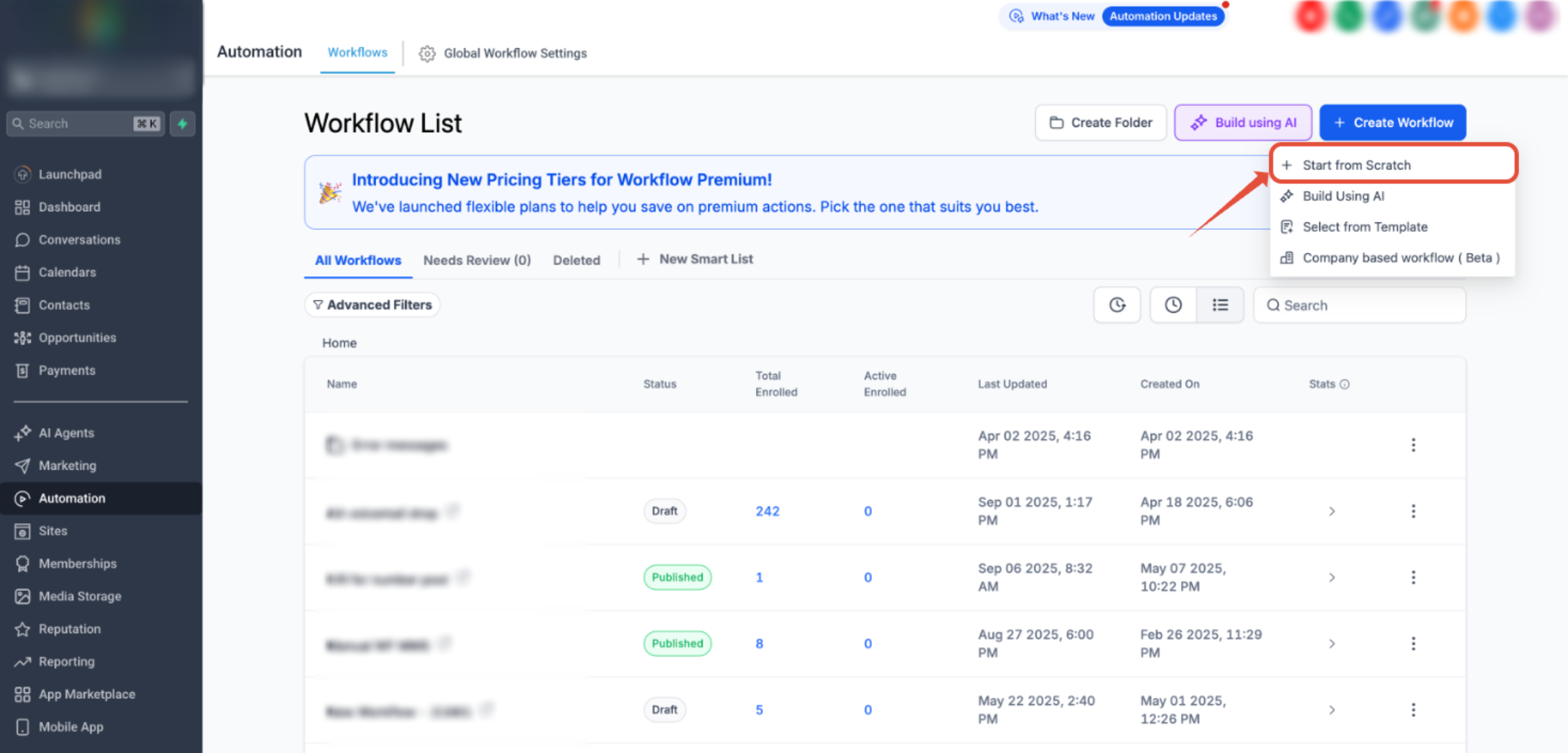
Select Start from Scratch, then choose Create New Workflow.
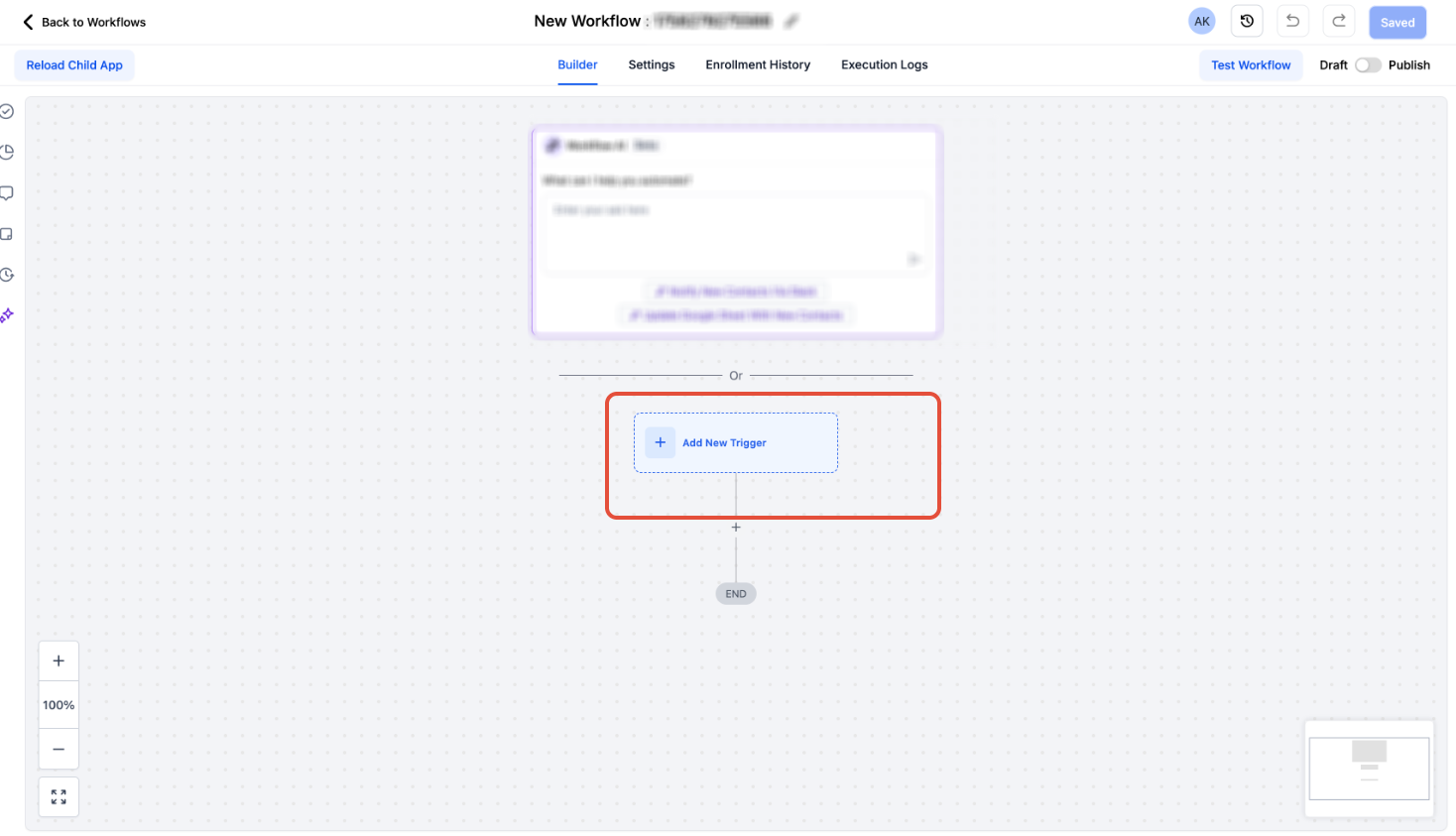
 Step 2Add the Customer Replied Trigger
Click Add New Workflow Trigger.
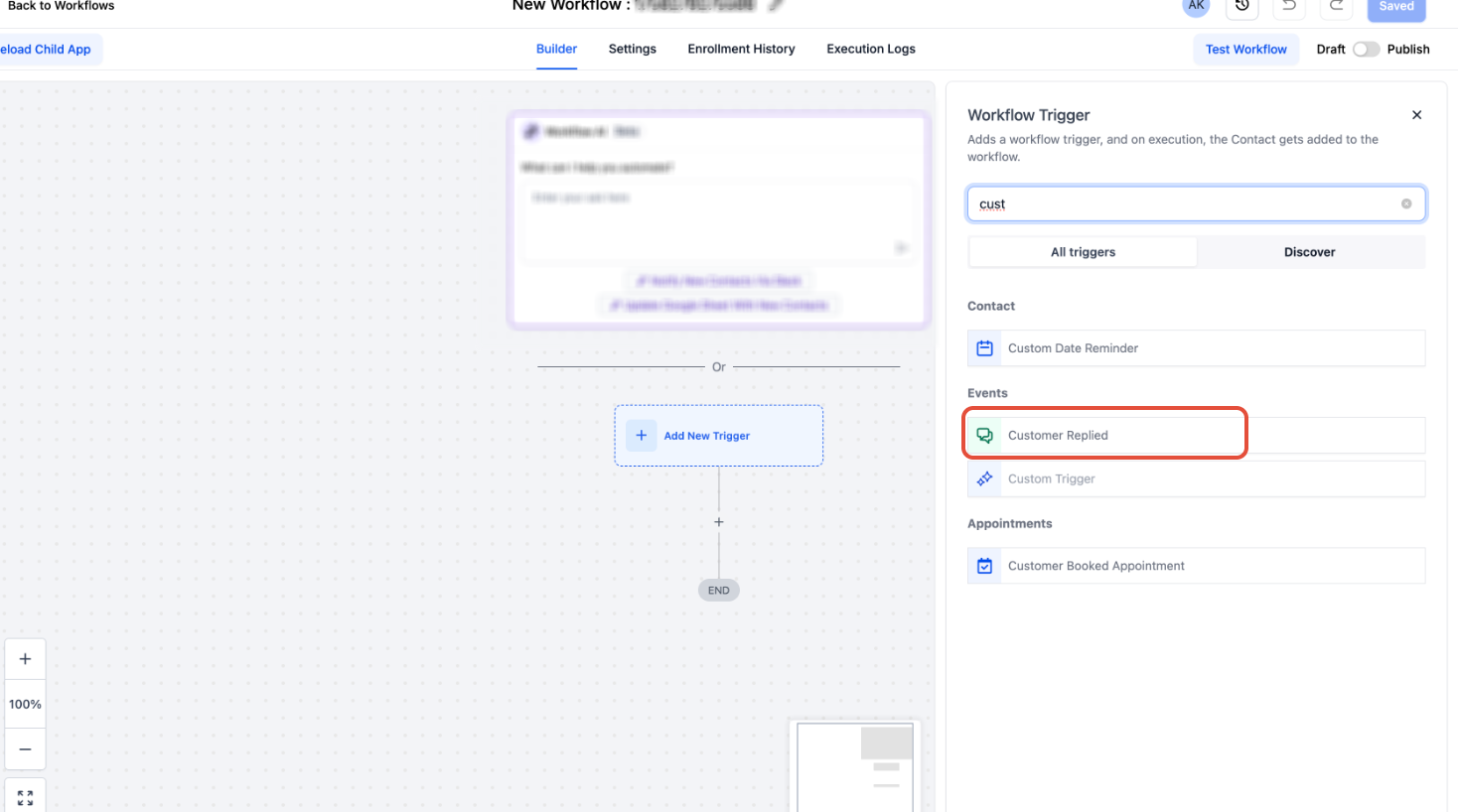
Select Customer Replied.
 Step 3Filter the Trigger to SMS Replies
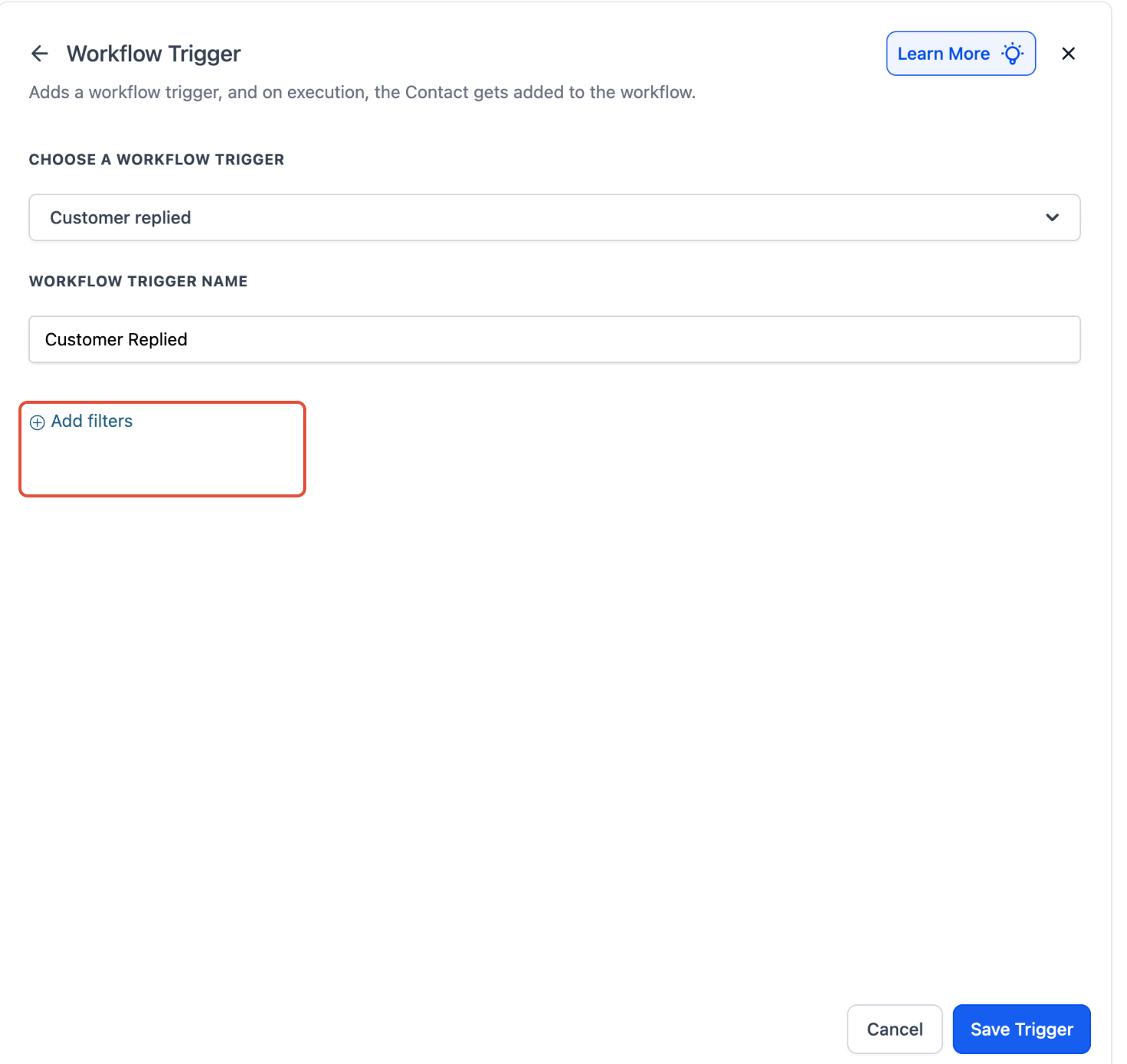
Click Add Filters.
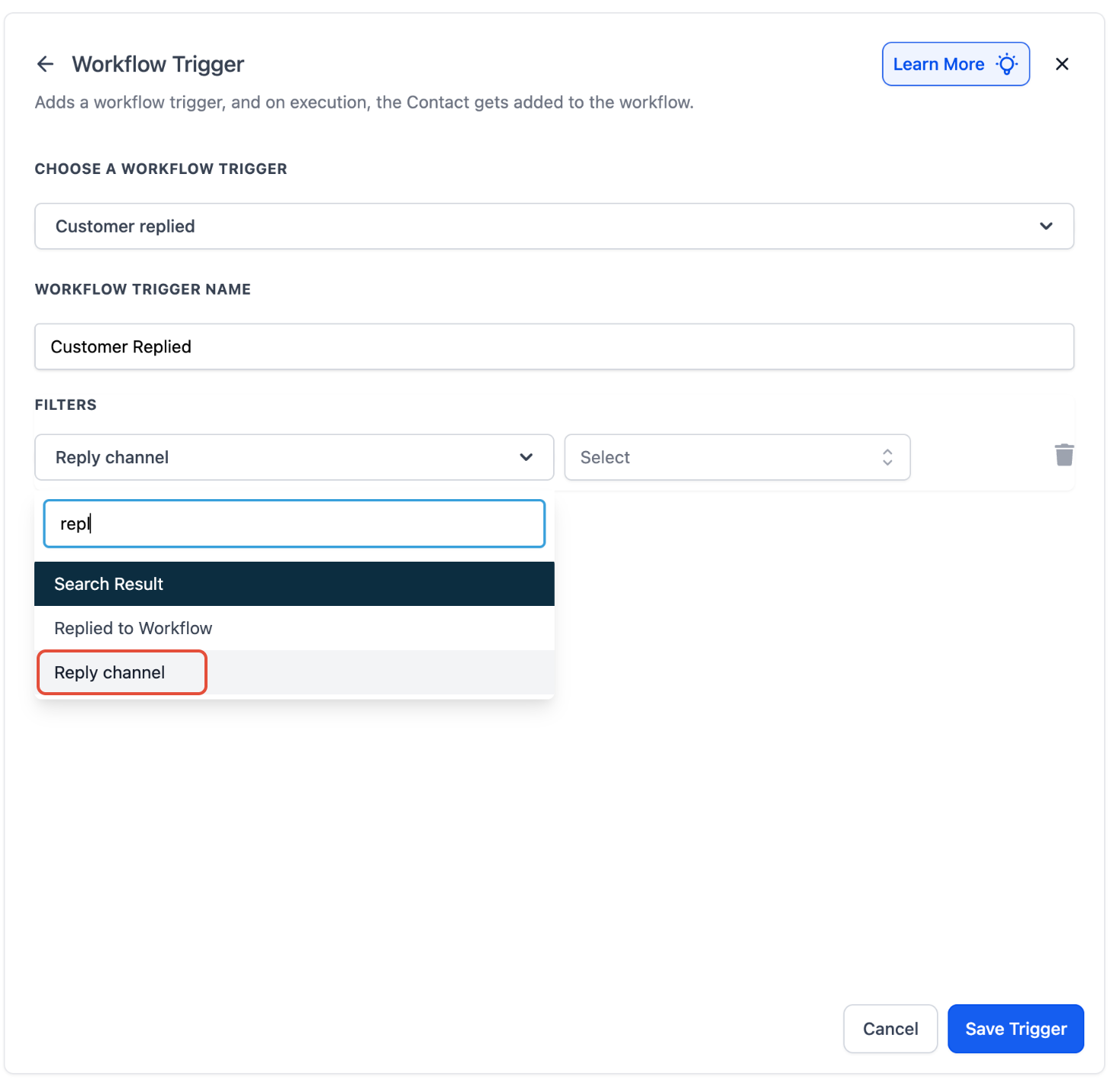
Choose Reply Channel.
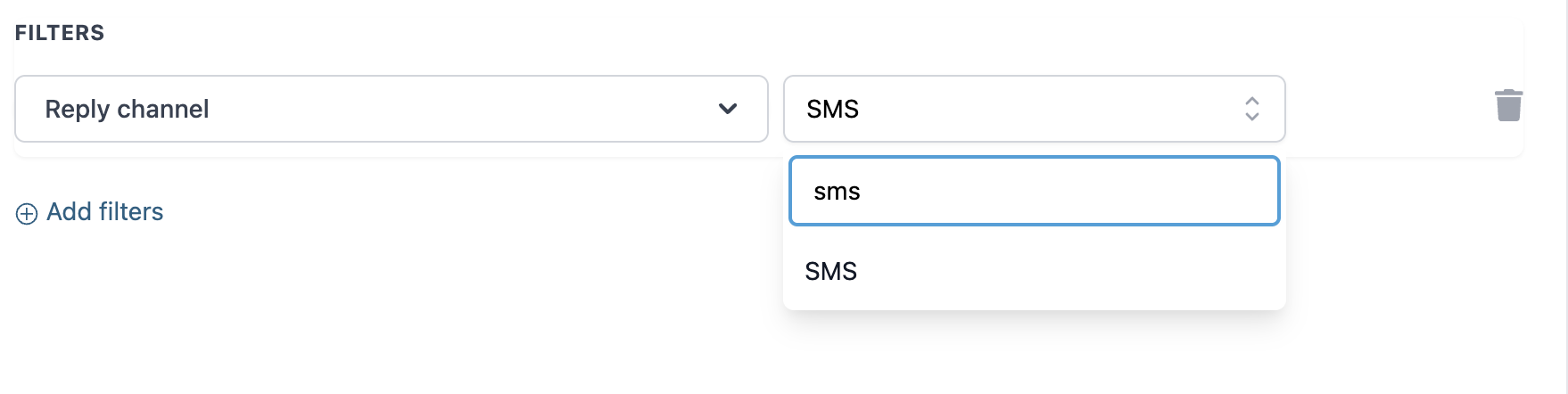
Select SMS as the Reply Channel.
Click Save Trigger.
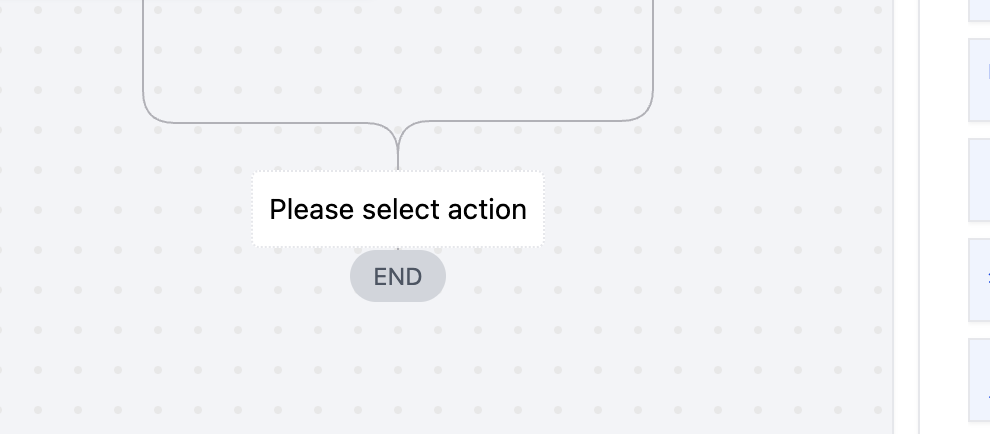 Step 4Add the Internal Notification Action
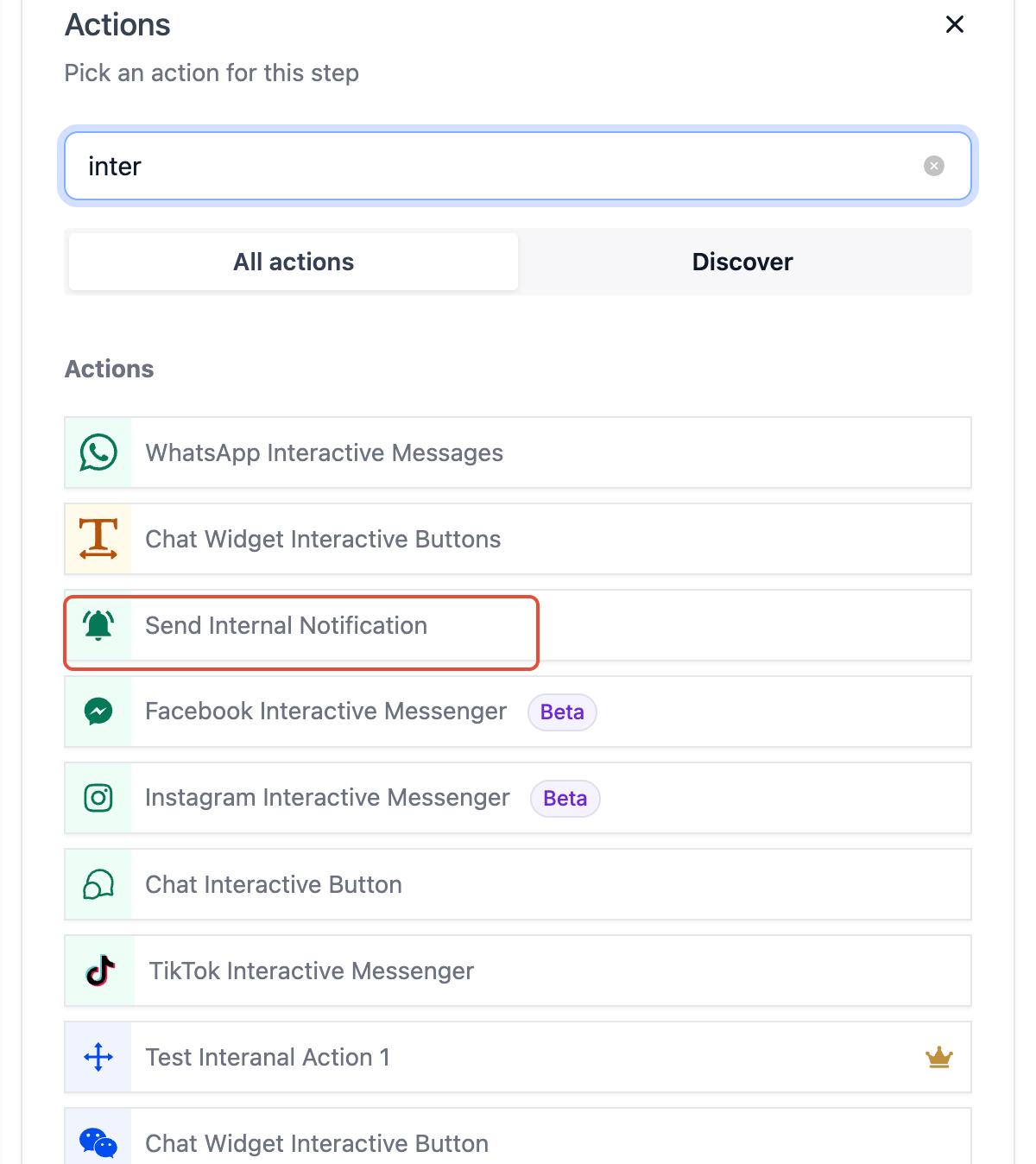
Click the action below the trigger and select Send Internal Notification.
Messaging ChargesSMS internal notifications generate outbound SMS usage and applicable messaging charges.
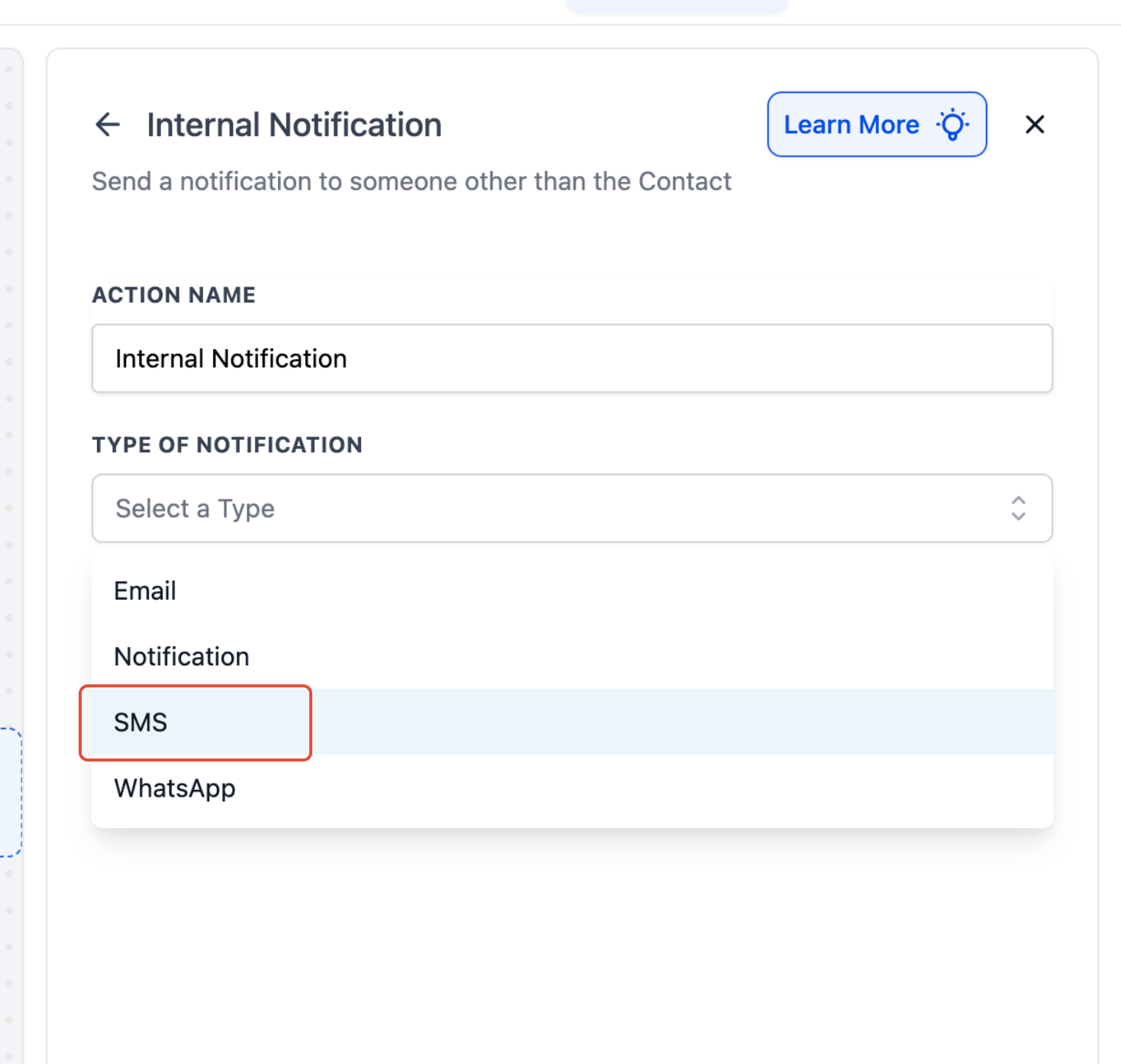
Choose SMS as the notification type and select the appropriate internal recipient supported by your configuration.
 Step 5Add the Inbound Message Body
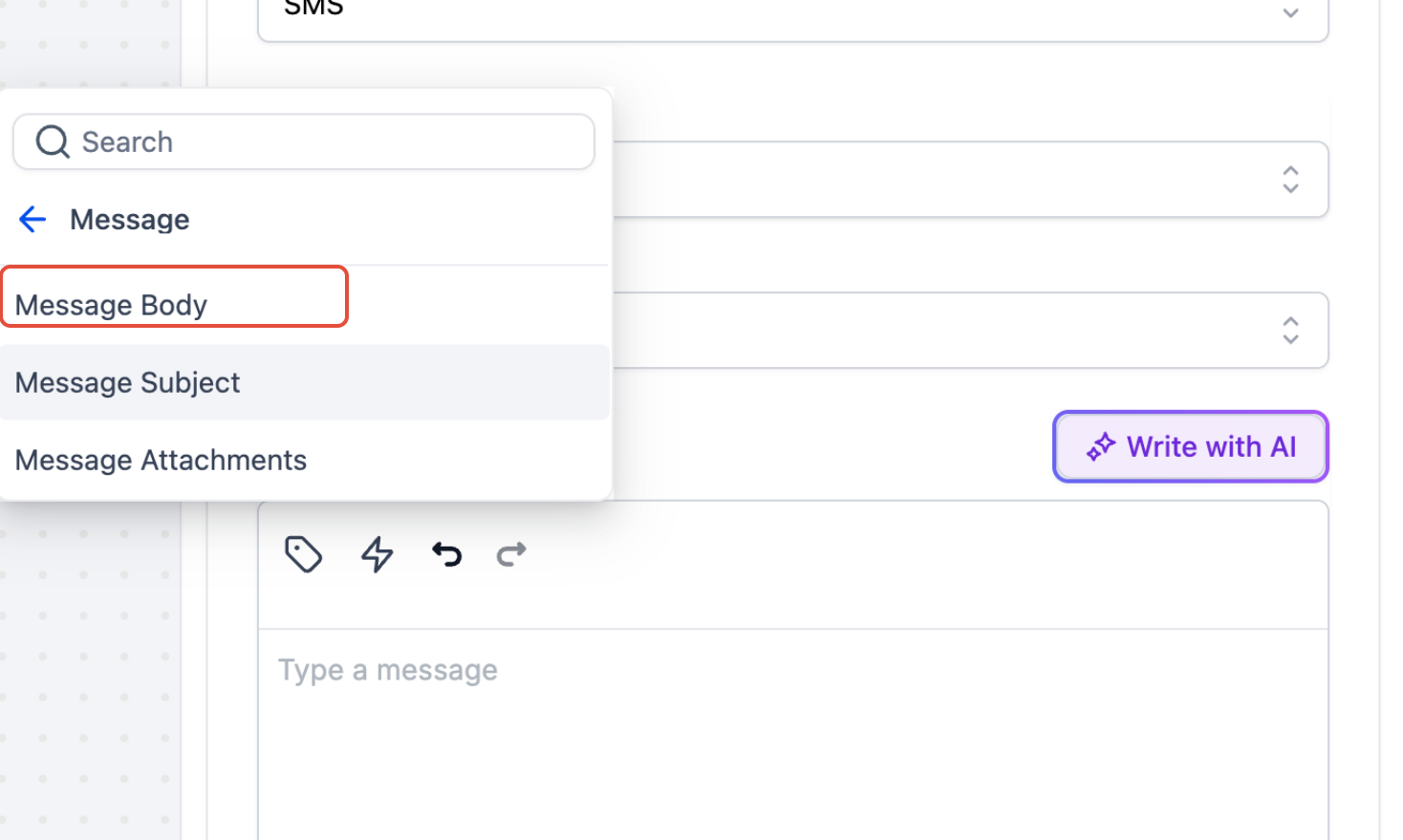
In the notification message, open the Custom Values picker and select Message → Message Body. This inserts {{message.body}}, which provides the content of the reply that triggered the workflow.
 Step 6Add Contact Details
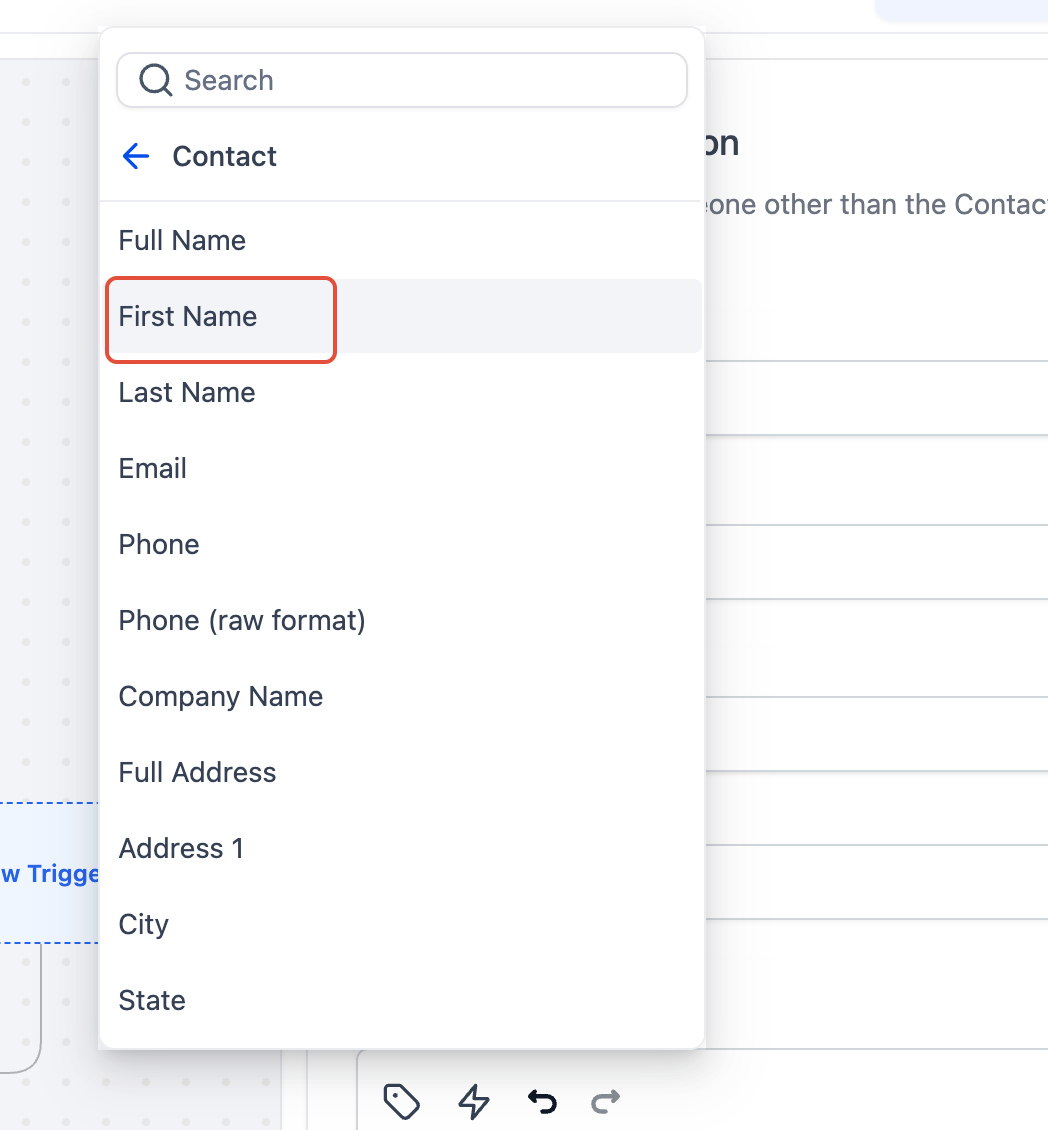
Add useful contact values such as Contact → First Name so the notification identifies who sent the message.
Example notification:
New SMS from {{contact.first_name}}:
{{message.body}}
Save the action, publish the workflow, and send a test SMS reply from a contact. Confirm that the inbound message appears in Conversations and that the intended internal recipient receives the separate SMS notification.
Configure Re-entry for Repeated SMS Replies
Allow Re-entry controls whether the same contact can enter the workflow again after completing it. This setting matters for an inbound SMS notification workflow because contacts may reply more than once over time.
- Allow Re-entry enabled: A contact can enter the workflow again after they have completed it or have been manually removed.
- Allow Re-entry disabled: A contact can enter and complete the workflow only once.
Important: A contact cannot re-enter while they are still active in the workflow. For a simple notification workflow, keep the workflow short so it can complete before the contact's next qualifying reply.
Troubleshooting Inbound SMS Notifications
Most notification issues are caused by trigger filters, workflow status, recipient configuration, re-entry settings, or SMS delivery limits. Checking each layer in order can quickly identify why an expected alert was not received.
The workflow does not trigger- Confirm the trigger is Customer Replied.
- Confirm the filter is Reply Channel = SMS.
- Confirm the workflow is published and active.
- If the contact has already completed the workflow, check whether Allow Re-entry is enabled.
- Confirm the intended internal user has a valid phone number configured.
- Review the workflow execution history for errors.
- Check the failed SMS in Conversations or messaging logs for an error code when available.
Long SMS notifications may be split into multiple segments or affected by carrier and messaging limits. This can happen when a large dynamic value such as {{message.body}} is inserted into the notification. Keep SMS notification content concise or use another internal notification channel when long content is expected.
Frequently Asked Questions
Q: Will I be charged for each SMS internal notification?Yes. SMS internal notifications use outbound messaging and can generate applicable SMS charges. For high-volume alerts, consider an in-app or email internal notification instead.Q: Is the original inbound SMS actually forwarded?No. The original inbound message remains in Conversations. The workflow creates a separate internal notification that can include the original message content through {{message.body}}.Q: Will the workflow notify me every time the same contact sends another SMS?Only when the contact is eligible to enter the workflow again. Enable Allow Re-entry if the same contact should be able to re-enter after completing the workflow.Q: What does {{message.body}} contain?It inserts the message content associated with the reply that triggered the workflow. If the resulting SMS notification becomes very long, it may be split into multiple segments or be affected by messaging limits.Q: Can I notify more than one team member?Yes. Internal Notifications can target supported users, roles, or teams depending on the notification configuration. Each SMS recipient can contribute to messaging usage.Q: Can the Customer Replied trigger also monitor email or chat replies?Yes. Customer Replied supports multiple reply-channel filters. If you need notifications for other channels, configure the appropriate Reply Channel filters or separate workflows so each channel can be managed intentionally.Q: Does the contact receive a confirmation when the internal notification is sent?No. The Internal Notification action alerts your internal recipient and does not automatically reply to the contact. If you want the contact to receive an automated response, add a separate Send SMS action.Need Help?
If inbound SMS notifications are not working as expected, review the workflow configuration before contacting Support. Trigger filters, re-entry settings, recipient phone numbers, and workflow status are common causes of notification issues.
Before Contacting Support- Confirm the workflow is published and active.
- Confirm the trigger is Customer Replied.
- Confirm the filter is Reply Channel = SMS.
- Confirm Allow Re-entry is enabled when repeat replies should trigger the workflow.
- Confirm the Internal Notification action is configured for SMS.
- Confirm the intended recipient has a valid phone number.
- Review the workflow execution history for errors or skipped actions.
When contacting Support, include as much information as possible so the issue can be investigated efficiently.
- The workflow name
- The contact used for testing
- The phone number that received the inbound SMS
- The approximate date and time of the test message
- The internal recipient who should have received the notification
- Any workflow execution errors or SMS error codes
- Screenshots or a screen recording of the workflow trigger and notification action
More in Open Doors Phone
- Why are my Calls marked as Spam and how can I avoid it
- Phone Number Settings Explained
- How to Purchase a Phone Number for Your Business
- Forbidden message categories for SMS and MMS in the US and Canada
- A2P 10DLC Campaign Approval Best Practices
- SMS Compliance Guide: Consent, Opt-Outs, and Sending Limits
- Brand Registration Step by Step Guide and FAQs
- Toll-Free Verification Guide for LC - Phone (US/Canada)
- Detailed Pricing for A2P 10DLC Registrations
- What is A2P 10DLC?
- Brand Approval Best Practices for A2P 10DLC
- A2P 10DLC Brand Approval Best Practices