

How to Download Share Certificates & Badges
How to Download and Share Certificates & Badges
Learn how to download certificates and badges in multiple formats (PDF, PNG, JPG) and share them via email or social media directly from your Memberships dashboard.What You'll LearnThis guide explains how to download and share certificates and badges directly from your credentials dashboard.
You'll learn how to access the credentials dashboard, share credentials via email, download them in different formats, and understand the difference between issued credentials and templates.
Accessing the Credentials Dashboard
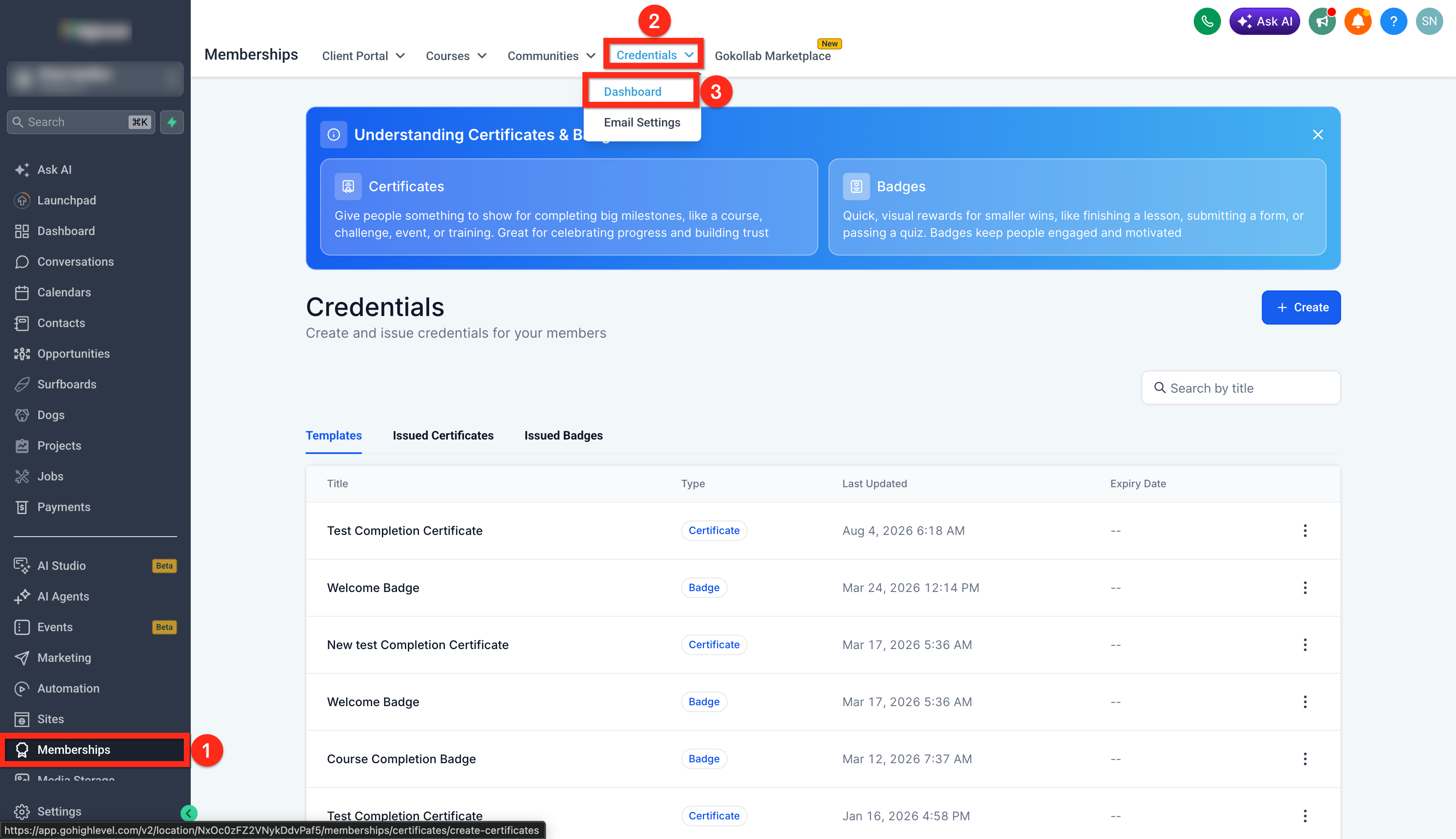
The Credentials dashboard is where you manage all your certificates and badges. Follow these steps to access it:
- Log into your account
- Go to Memberships
- Select Credentials > Dashboard
This opens your credentials dashboard where you can view, create, download, and share all your certificates and badges.
Understanding the Dashboard
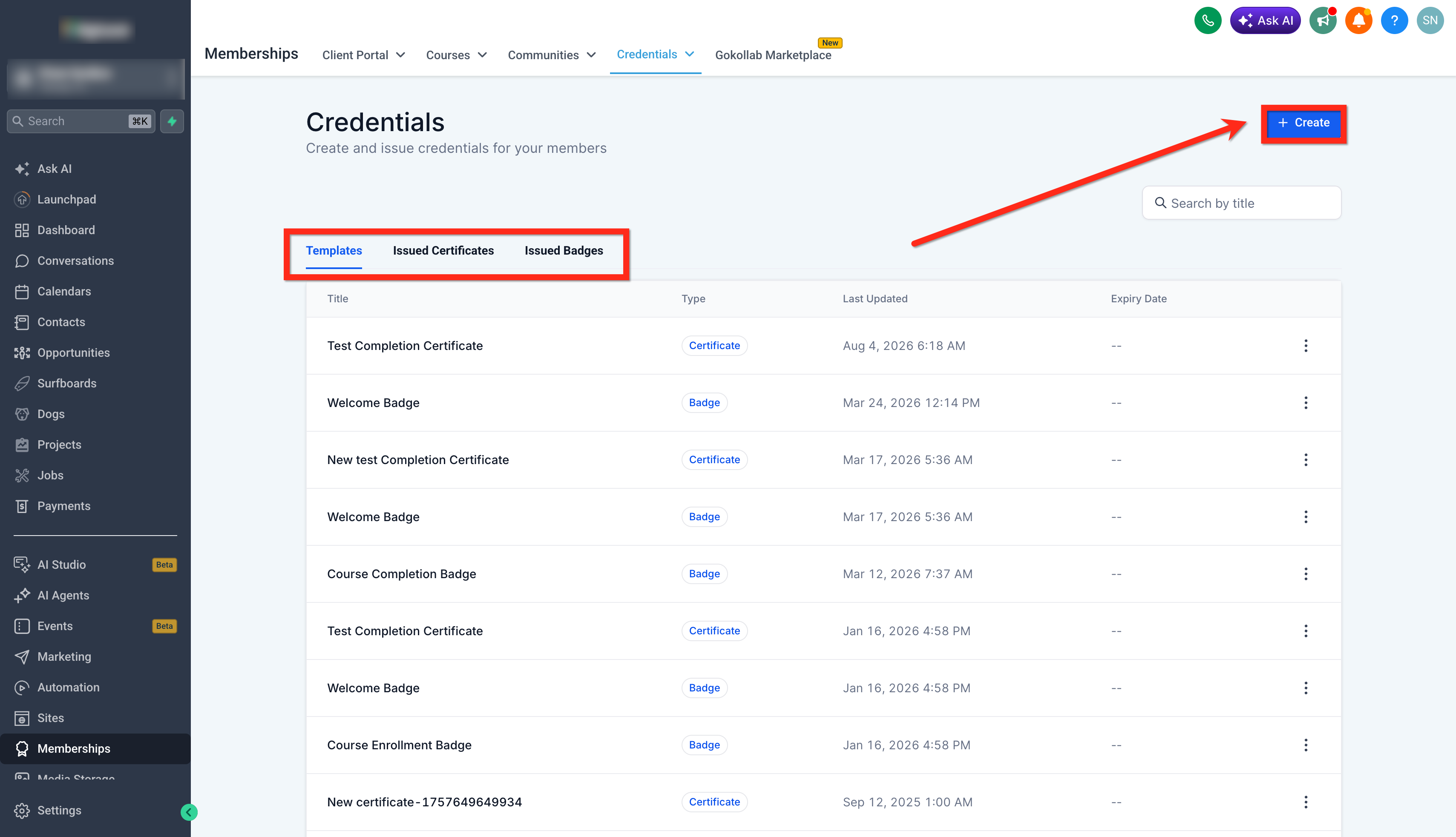
Your credentials dashboard displays three main sections:
Issued CertificatesCertificates that have been issued to specific recipients with their names and issue dates.
Issued BadgesBadges that have been issued to recipients and are ready to share.
TemplatesCertificate and badge templates that haven't been issued to anyone yet. These are your master designs that you can preview and download.
Creating New TemplatesYou can create new certificate and badge templates directly from the dashboard by clicking the creation buttons in the Templates section.
How to Share Certificates and Badges via Email
You can send certificates and badges directly via email from the certificate editor. Follow these steps:
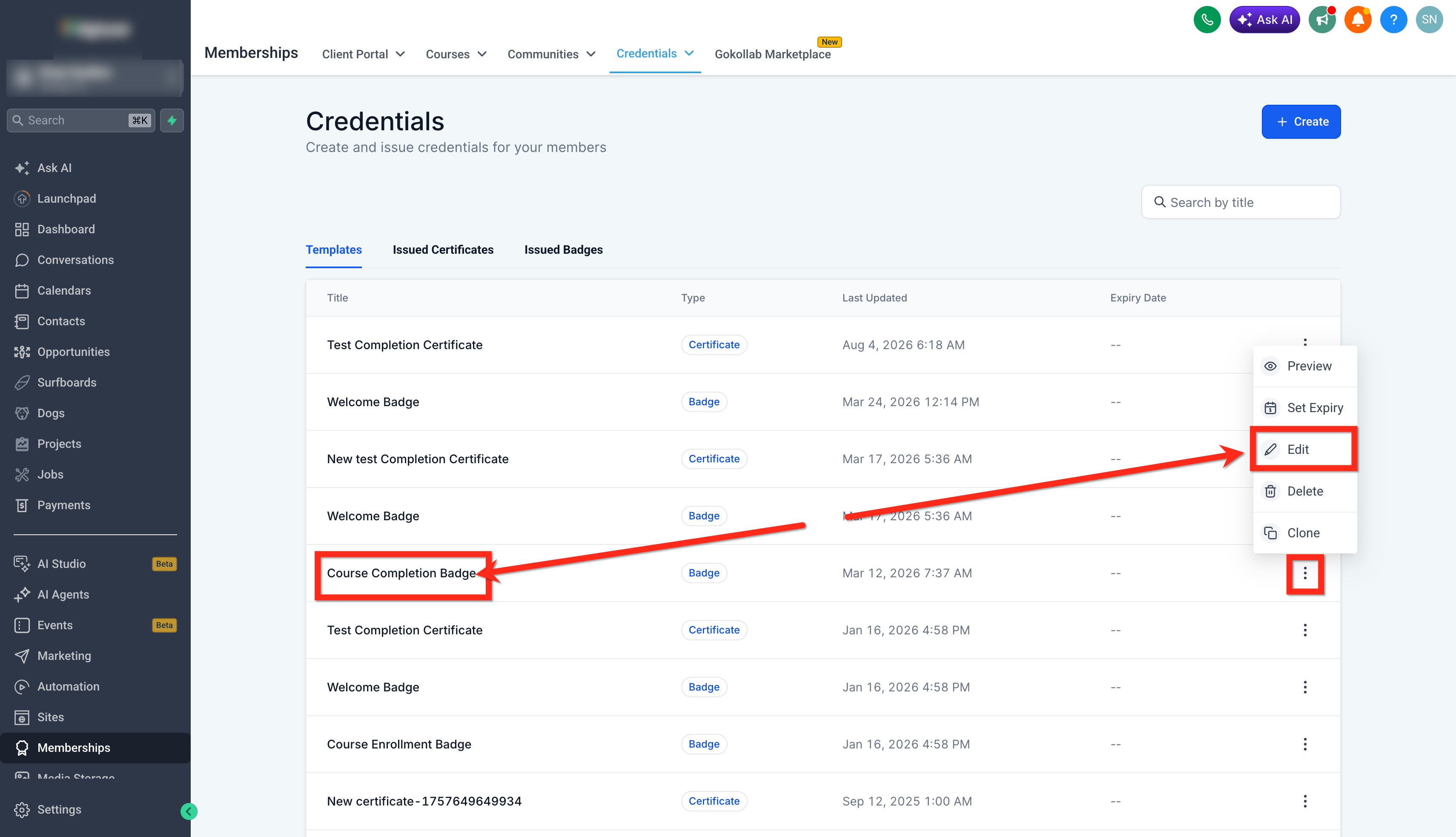
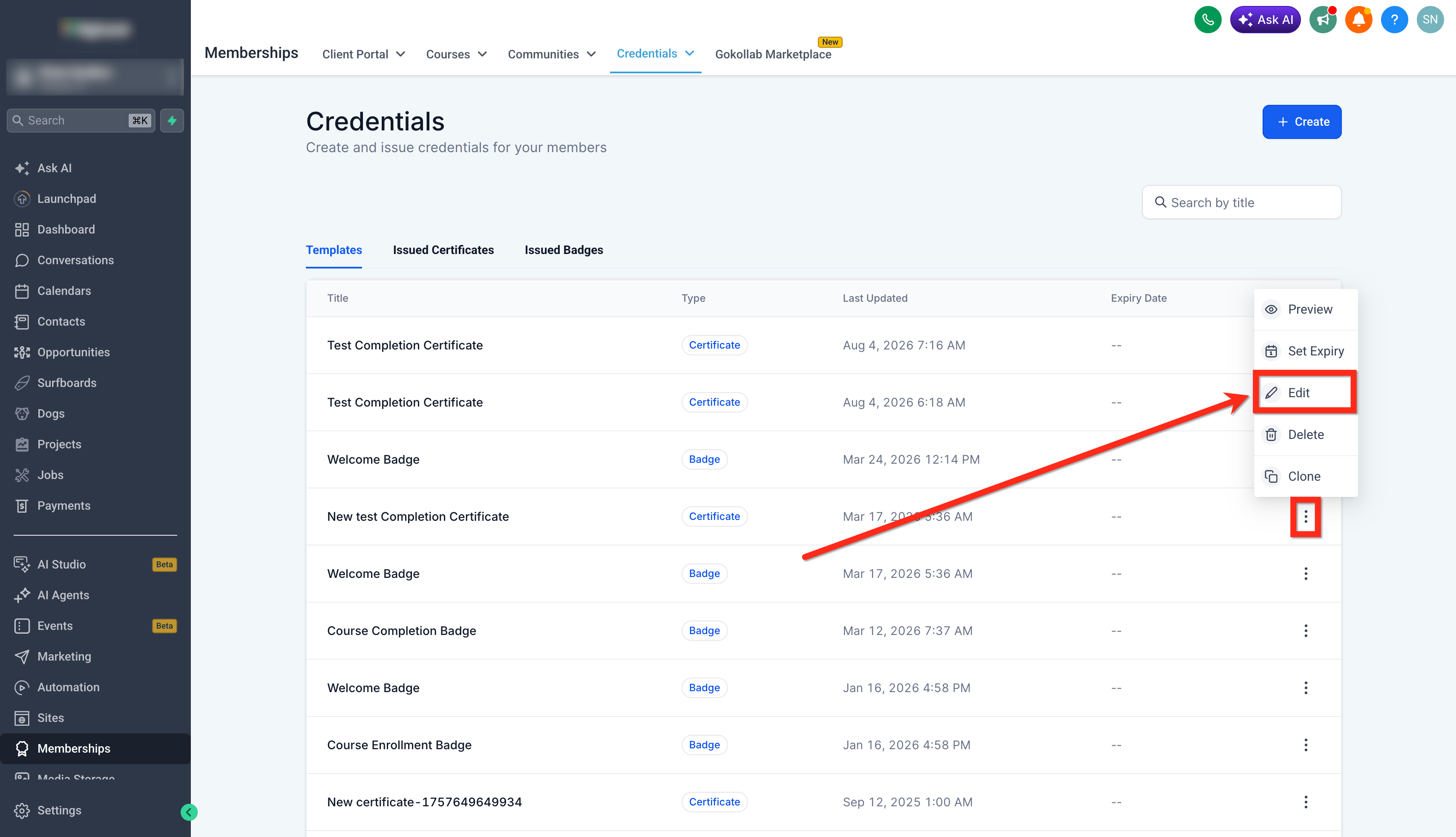
Step 1Click on the certificate nameIn the Credentials dashboard, click on the certificate or badge name to open the certificate editor or click on the three dots and click on Edit.
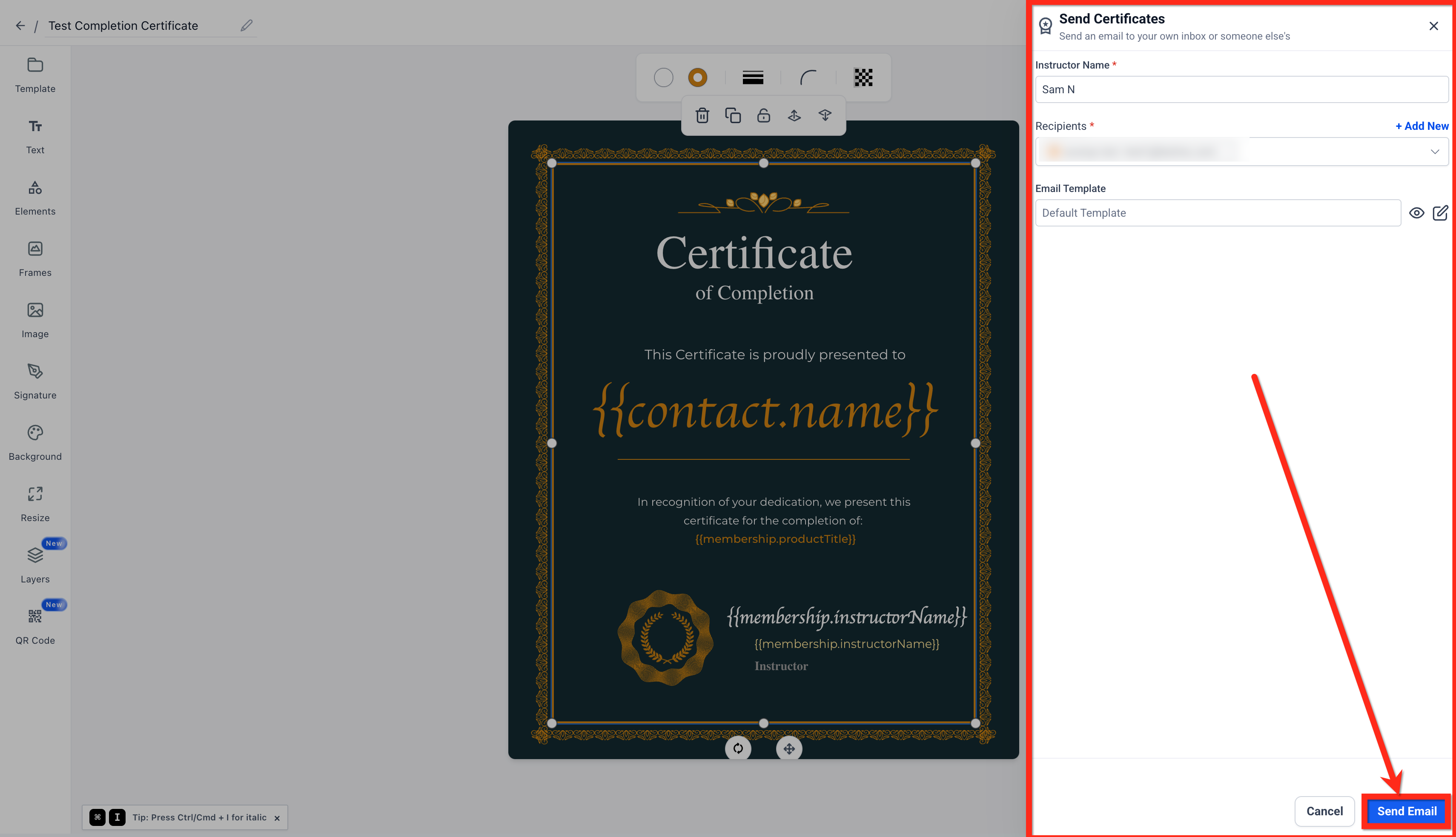
In the top right corner of the certificate editor, click the Send button.
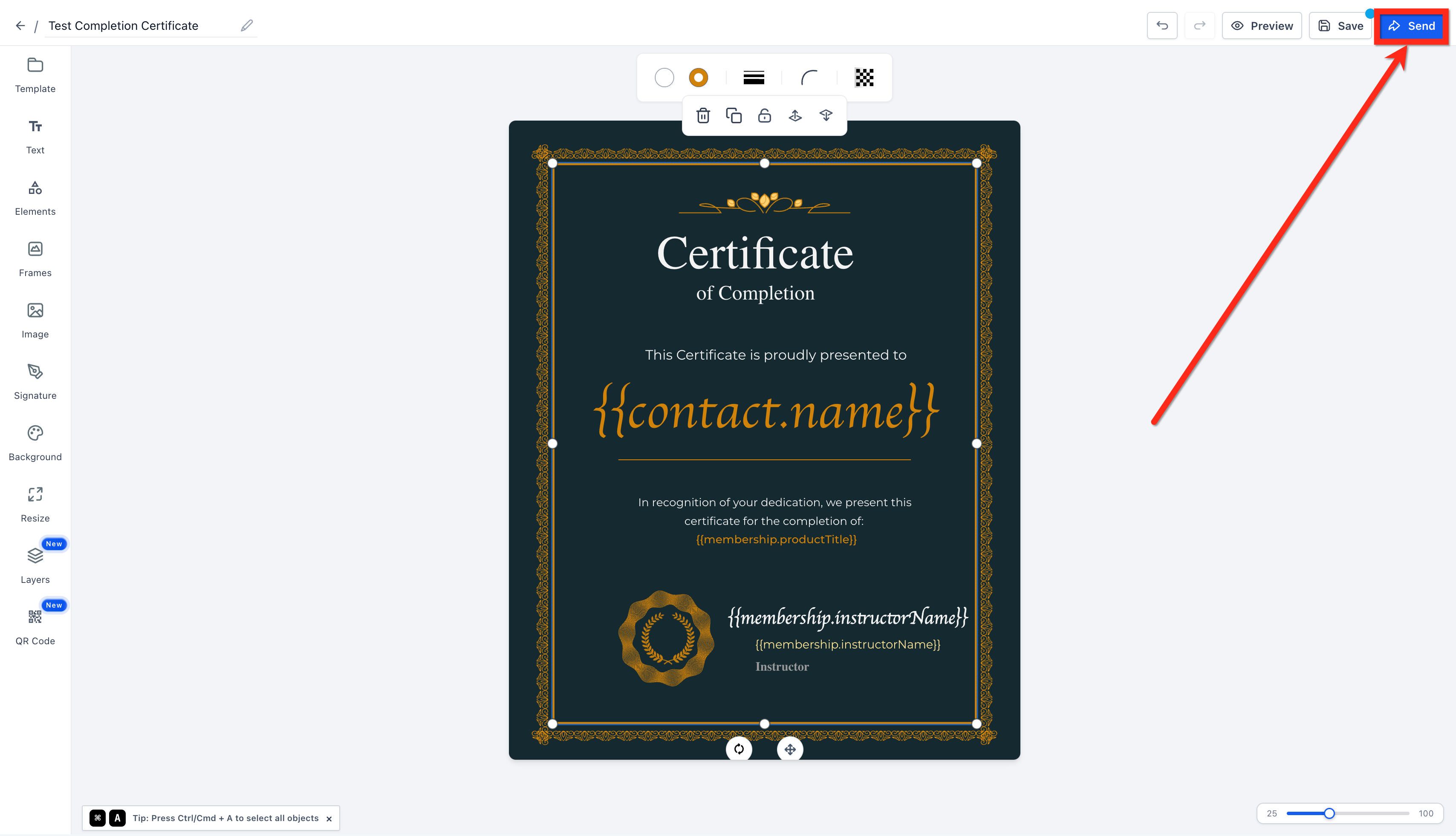
From the sharing interface, you can send the certificate via email directly from here.
How to Download Certificates and Badges
Download certificates and badges in your preferred format using the preview interface. Follow these steps:
Step 1Click the three dotsIn the Credentials dashboard, locate the certificate or badge you want to download and click the three-dot menu icon next to it and select Preview to open the credential preview page.
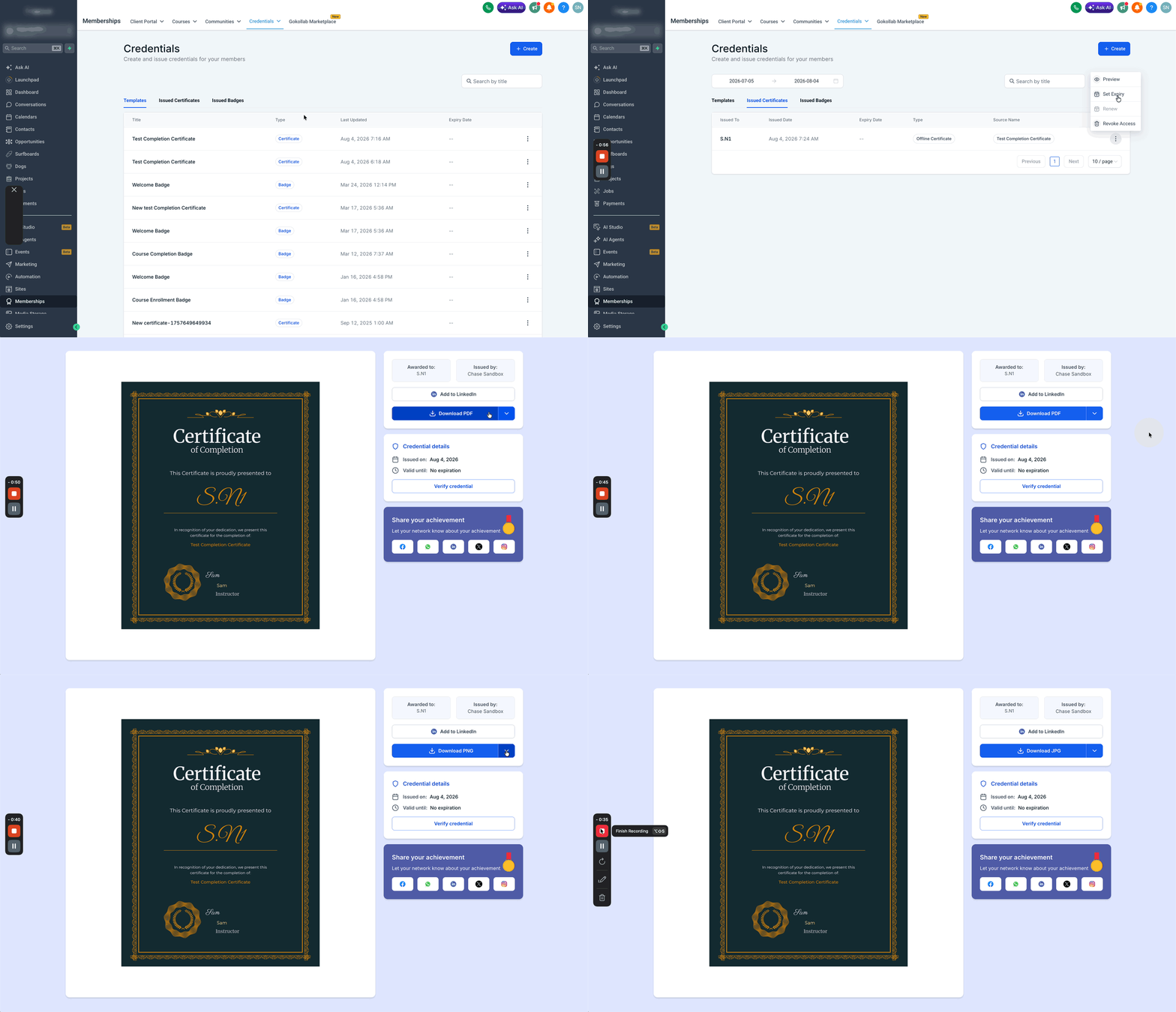
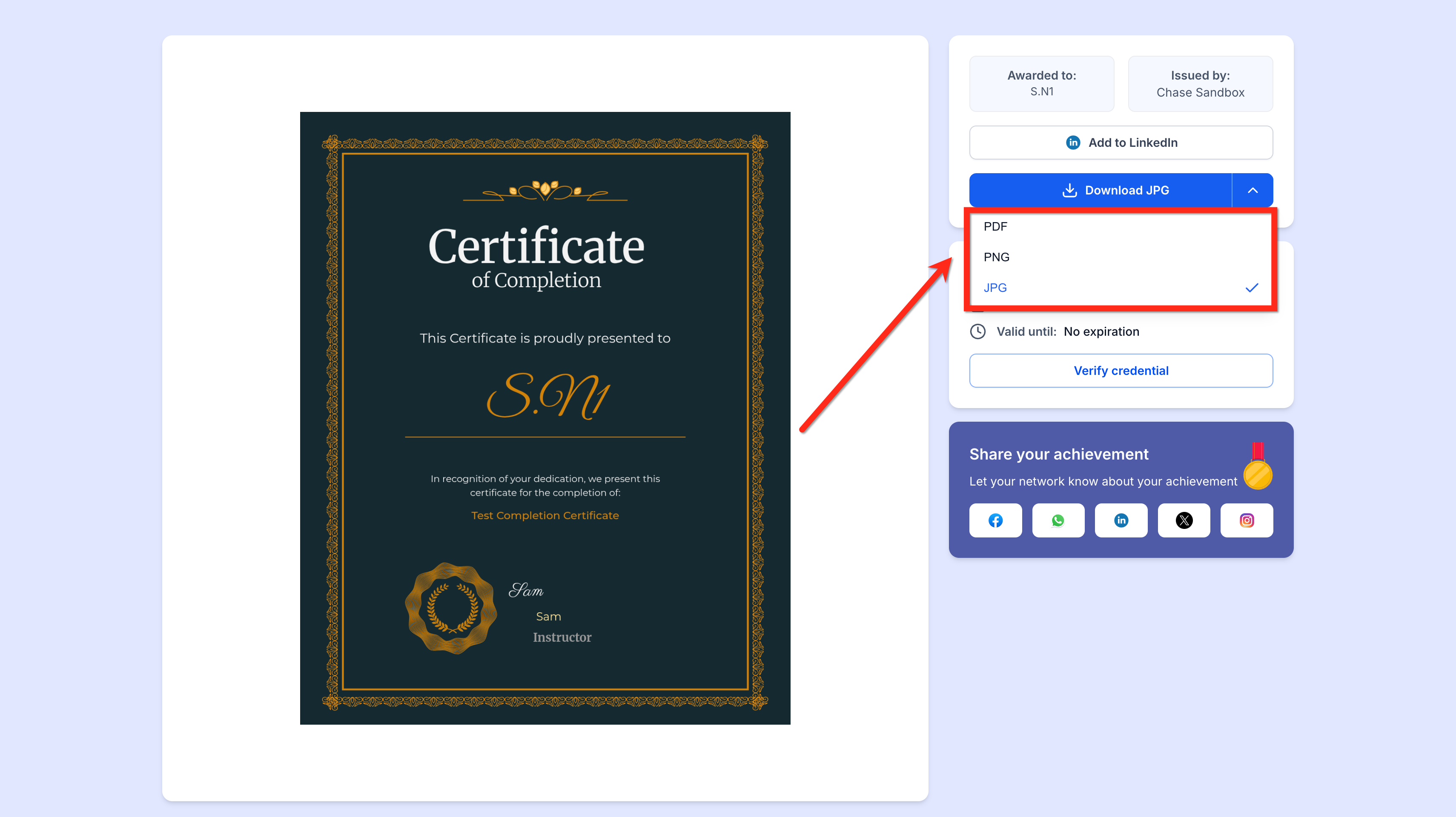
On the preview page, you'll see two download options:
- Download PDF button, Click this to download as PDF (the default format)
- Down arrow, Click the down arrow beside the download button to choose between PDF, PNG, and JPG formats.
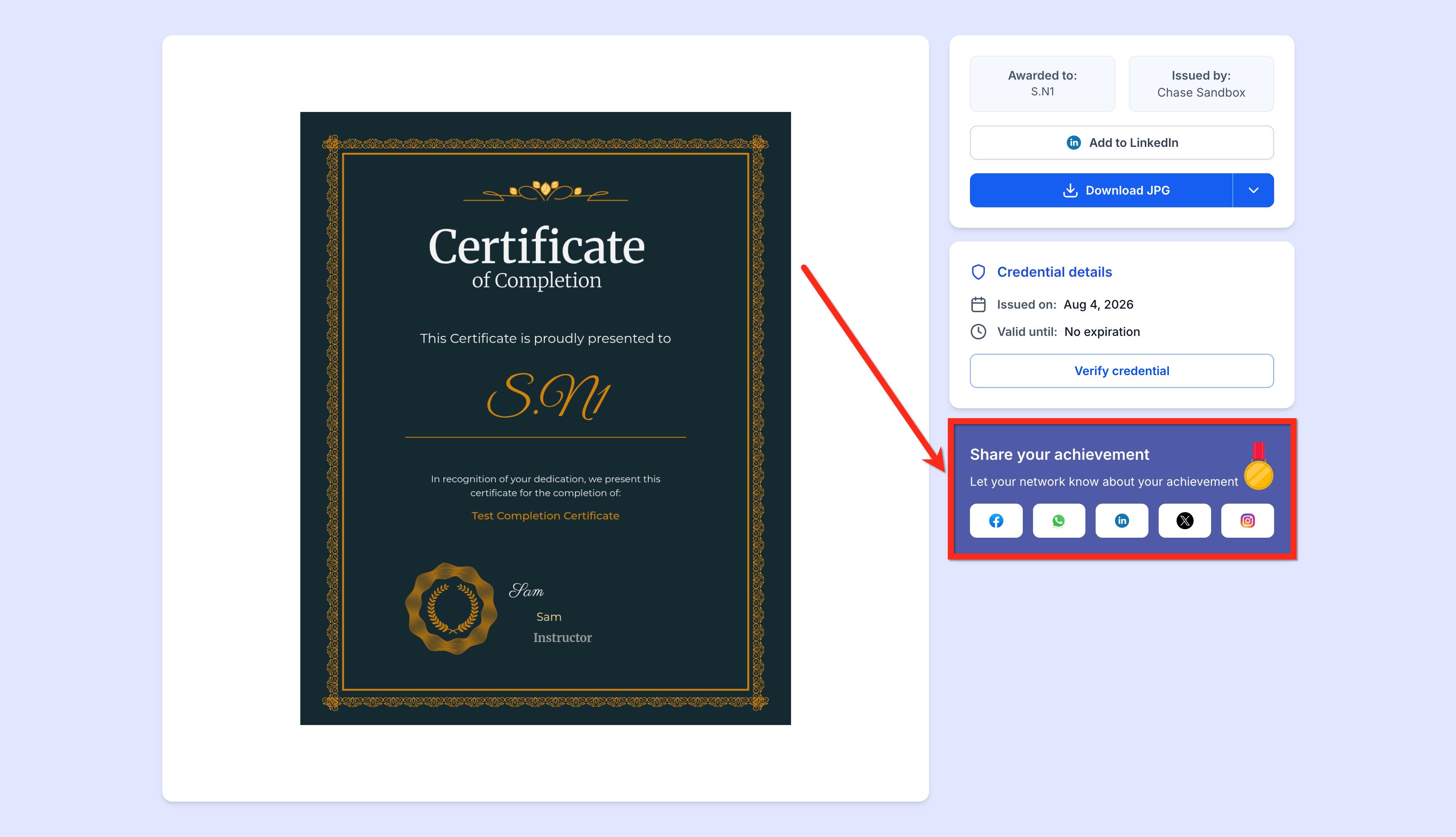
You can also share credentials to social media from the preview page, but you need to issue the credential first. Social media sharing is not available for templates that haven't been issued yet.
Available Download Formats
Supports three download formats for certificates and badges:
PDF (Default)Best for professional printing, framing, and maintaining design fidelity.
PNGHigh-quality images with transparency support, ideal for website embedding and badges on profiles.
JPGSmaller file sizes for email attachments, social media posts, and quick sharing.
Frequently Asked Questions
Q: Can I download templates that haven't been issued yet?Yes. You can preview and download both templates and issued credentials using the three-dot menu and Preview option.Q: Why can't I share templates to social media?Social media sharing is only available for issued credentials because they contain recipient-specific information. You need to issue the credential to someone first before sharing it on social media.Q: Which format should I use for email attachments?JPG is best for email attachments because it has smaller file sizes. If you need transparency or higher quality, use PNG.Q: Can recipients download their own certificates in different formats?Yes. When recipients access their credential through their share link or the Client Portal, they see the same preview interface with all three download format options.More in Issue Certificates
- Issue certificates on Course Completion
- Download all your Certificates from Client Portal
- Set Expiry Dates and Reminder Emails for Certificates and Badges
- Default Certificates in Courses & Category Completion Certificate
- Certificates: Snapshot & Clone Support
- How to Send a Certificate After Passing a Quiz or Assignment
- Export Issued Certificates as CSV