

Issue Certificates
Download all your Certificates from Client Portal
1 min read Updated 2 November 2026
How to Use the New Certificate Feature
Accessing Your Certificates
- Log in to the Client Portal: Start by logging into your account on the Client Portal.
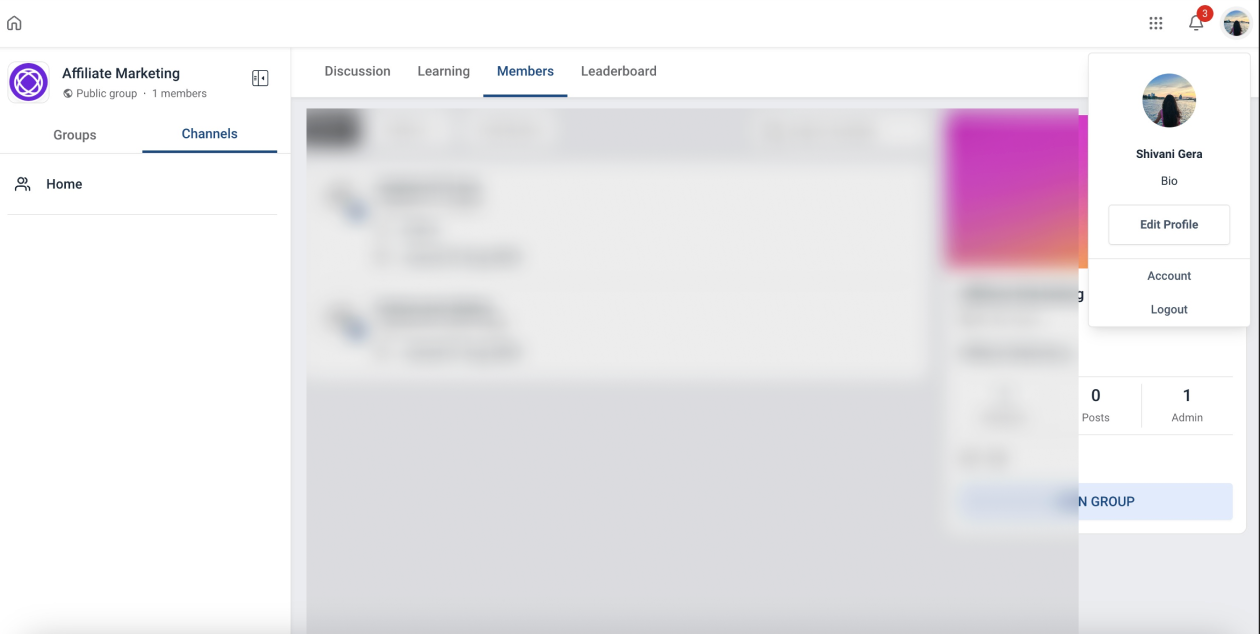
- Navigate to the Account Section: Look for the account section by clicking on your profile avatar.
Previewing & Downloading Certificate
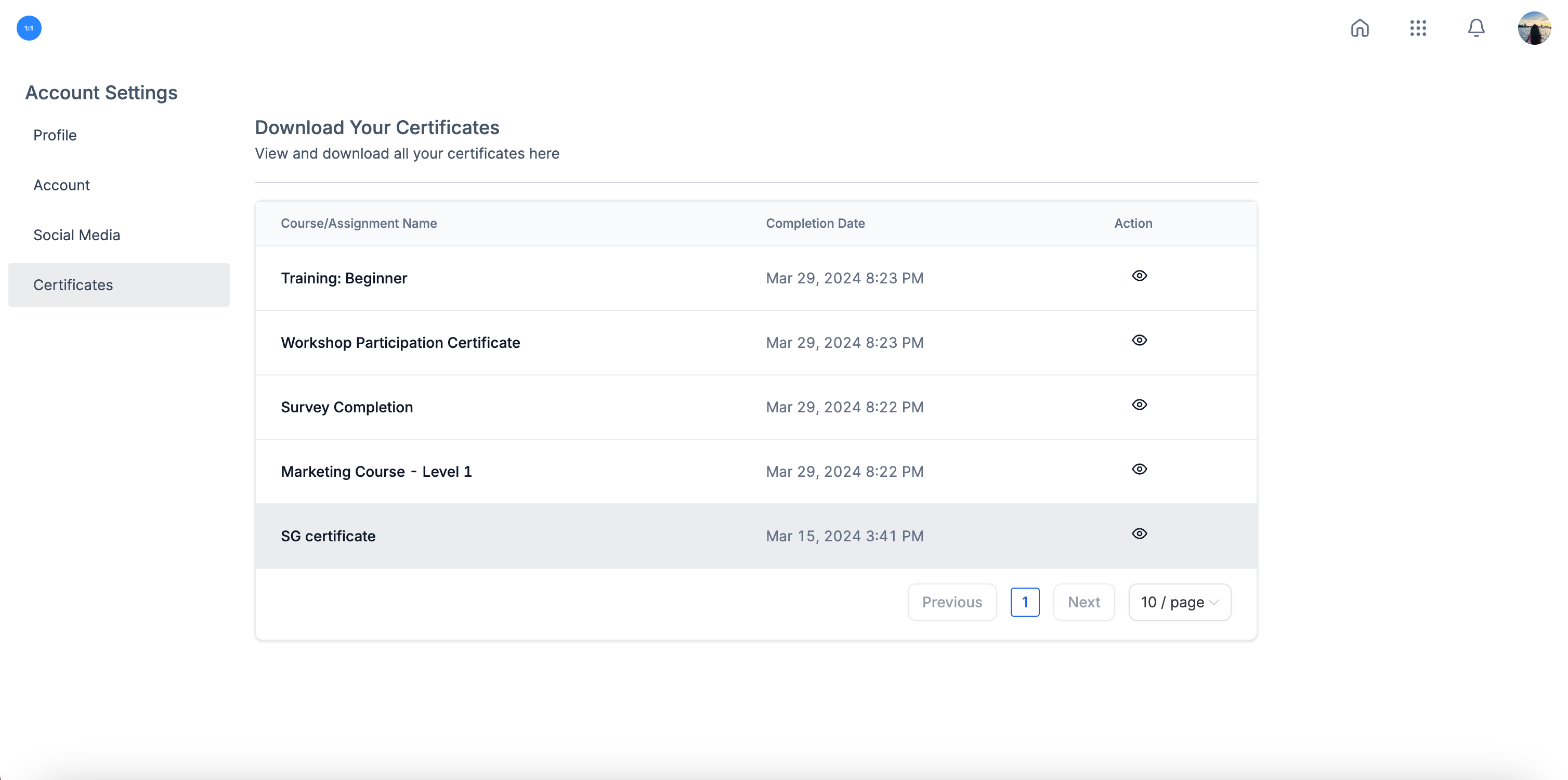
- Select the Certificate: Within the Certificates section, browse through your list of certificates.
- Click on Preview: Next to each certificate, you'll find a Preview button. Click on it to see the certificate in full detail within the portal.
- Download: Click on the Download button associated with the certificate. Your certificate will be downloaded to your device in a high-quality format, ready for use.
- Sharing a Certificate: Find the certificate you want to share and click on the Copy Link button next to it. This copies the certificate URL to your clipboard and allows you to share certificates.
More in Issue Certificates
- Issue certificates on Course Completion
- Set Expiry Dates and Reminder Emails for Certificates and Badges
- Default Certificates in Courses & Category Completion Certificate
- Certificates: Snapshot & Clone Support
- How to Send a Certificate After Passing a Quiz or Assignment
- How to Download Share Certificates & Badges
- Export Issued Certificates as CSV