

Bulk Import Companies via CSV
Bulk Import Companies via CSV
Import and update company records at scale using CSV files with guided field mapping, duplicate detection, and detailed tracking.What You'll LearnThis article walks you through the bulk company import process in Open Doors' CRM, including how to prepare your CSV file, map fields correctly, handle duplicates, and track import results.
You'll also learn how to enable the feature in Labs, understand verification steps, and use best practices to avoid data errors during migration.
Labs FeatureCompany and Custom Object Import is currently available in Labs. You must enable it before accessing bulk import functionality. Navigate to Settings → Labs → Company and Custom Object Import to activate the feature.
Table of Contents1What is Bulk Import for Companies?2Key Benefits3Enabling Company Import in Labs4How to Set Up Bulk Company Import5Tracking and Monitoring Import Progress6Best Practices and Setup Tips7Frequently Asked Questions1What is Bulk Import for Companies?
Bulk Import for Companies is a CSV-based import tool that lets you create and update multiple company records at once in Open Doors' CRM. Instead of manually entering each company, you can upload a structured file containing company information and map it to the appropriate CRM fields.
The import process uses a four-step guided wizard that walks you through uploading your file, choosing import behavior (create, update, or both), mapping CSV columns to CRM fields, and verifying data before final submission. The system detects duplicates based on Company ID and provides detailed statistics on successful imports, errors, and warnings.
After completing an import, you can track progress and download a detailed report from the Bulk Actions, Companies dashboard for auditing and troubleshooting.
 2
Key Benefits
The bulk import feature streamlines CRM data management by eliminating repetitive manual entry and reducing the time required to migrate or update large company datasets.
Faster CRM Migration, Move existing company data from external systems or spreadsheets into Open Doors without recreating records manually.Duplicate Control, Automatically detect and prevent duplicate company records based on unique Company IDs during import.Field-Level Protection, Use the "Don't update to empty value" option to prevent accidental overwrites when CSV cells are blank.Detailed Audit Reports, Download post-import reports with success, error, and warning breakdowns for accountability and troubleshooting.Smart Field Mapping, Preview your CSV data and map columns to CRM fields interactively before committing changes.Reduced Operational Overhead, Eliminate hours of data entry work and minimize human error during bulk updates.3Enabling Company Import in Labs
Before you can access bulk company import, you must enable the feature through Open Doors' Labs settings. Labs features are experimental or early-access capabilities that require manual activation.
Step 1Navigate to SettingsIn your Open Doors account, click the gear icon or navigate to Settings from the main navigation menu.
Step 2Open LabsWithin Settings, locate and click Labs to view all available experimental features.
Step 3Enable Company and Custom Object ImportScroll down to find Company and Custom Object Import, then toggle the switch to On. The feature is immediately activated.
NoteOnce enabled, the import option appears in the Companies section. If you do not see the feature after toggling, refresh your browser.
4How to Set Up Bulk Company Import
The bulk import wizard guides you through a four-step process: starting the import, uploading your CSV, mapping fields, and verifying data before submission. Follow these steps to complete a successful import.
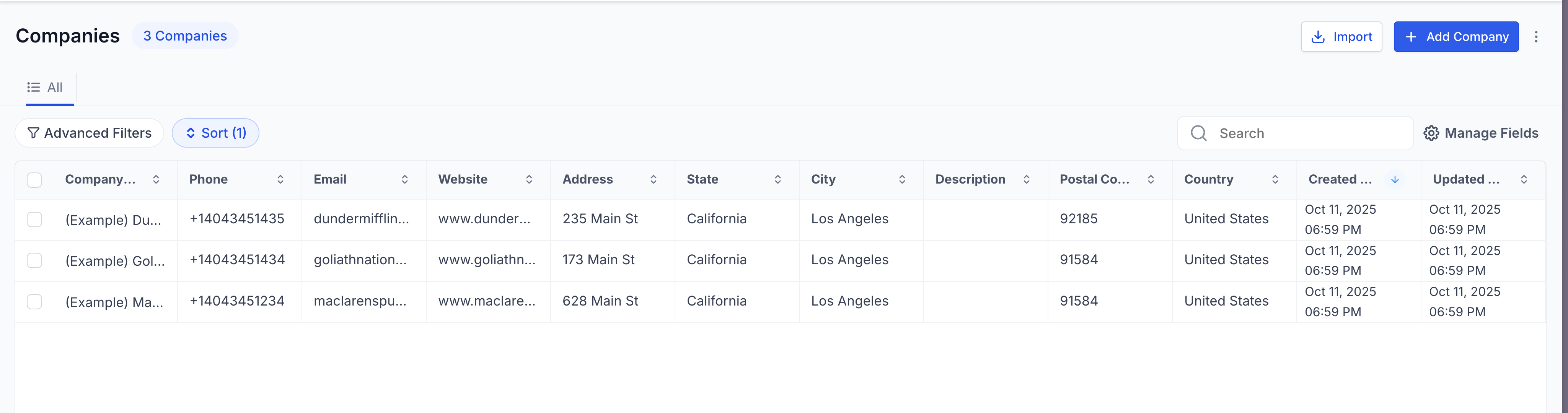
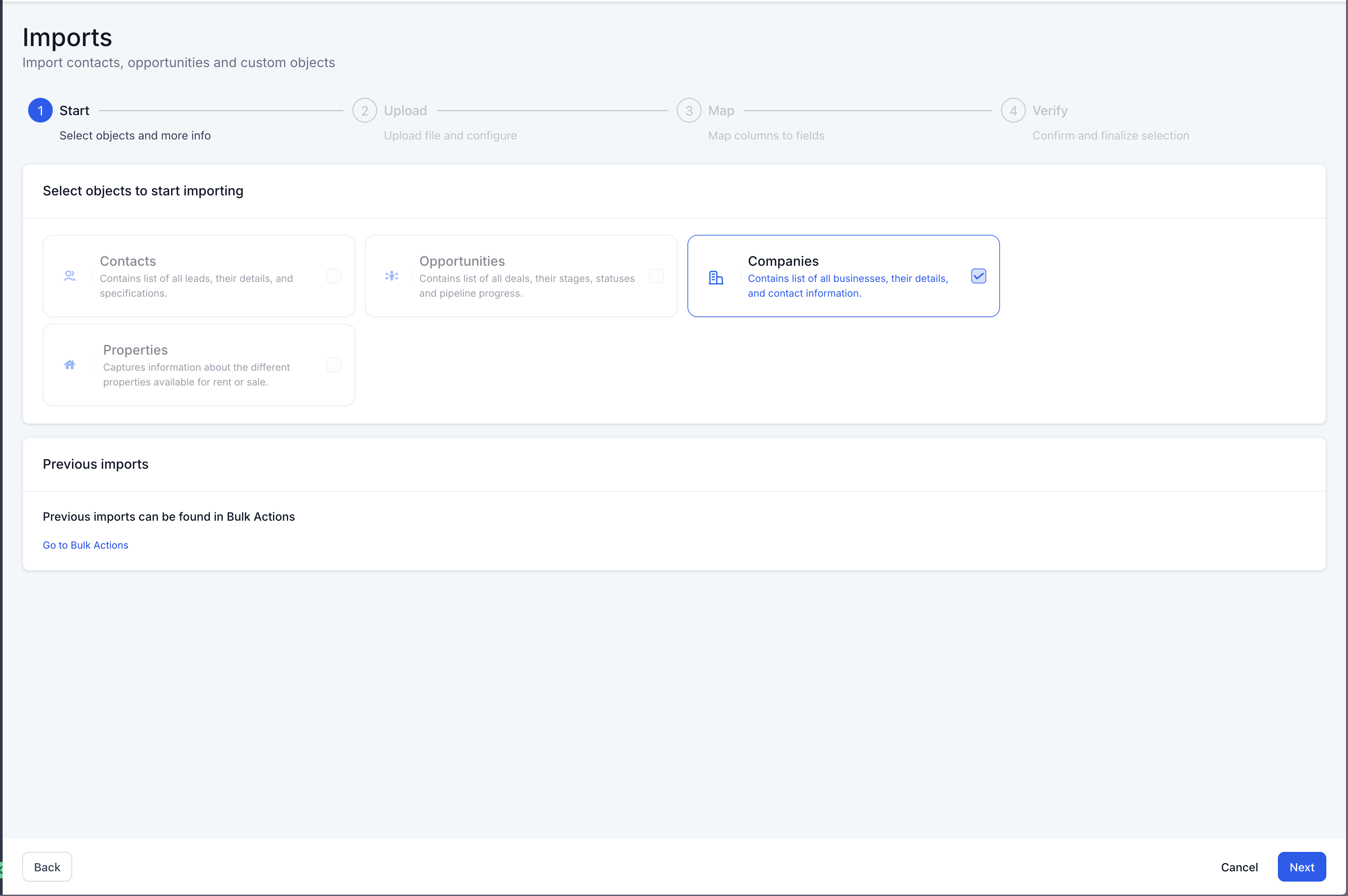
Step 1Start the ImportNavigate to Companies in the main menu, then click the Import button. On the object selection screen, choose Companies.
 Step 2Upload Your CSV File
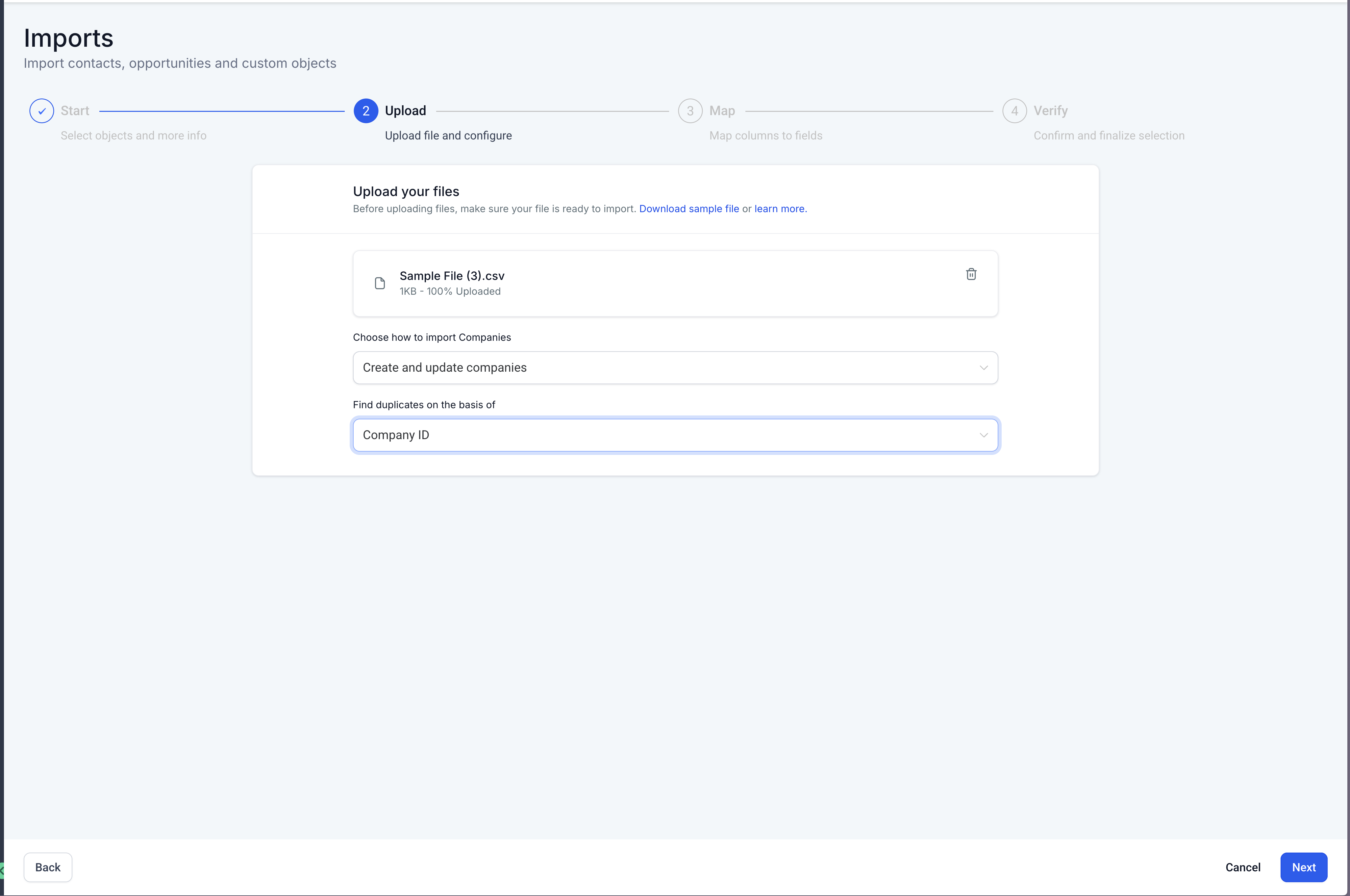
Click Choose File or drag and drop your CSV into the upload area. Your file should include column headers that match or can be mapped to Open Doors company fields.
After uploading, select your import behavior:
- Create companies, Only create new records; skip existing ones.
- Update companies, Only update existing records; skip new ones.
- Create & update companies, Create new records and update existing ones.
 Step 3Select Duplicate Detection Criteria
Choose the field used to identify duplicate records. The system defaults to Company ID. If a matching ID is found, the import updates that record instead of creating a duplicate.
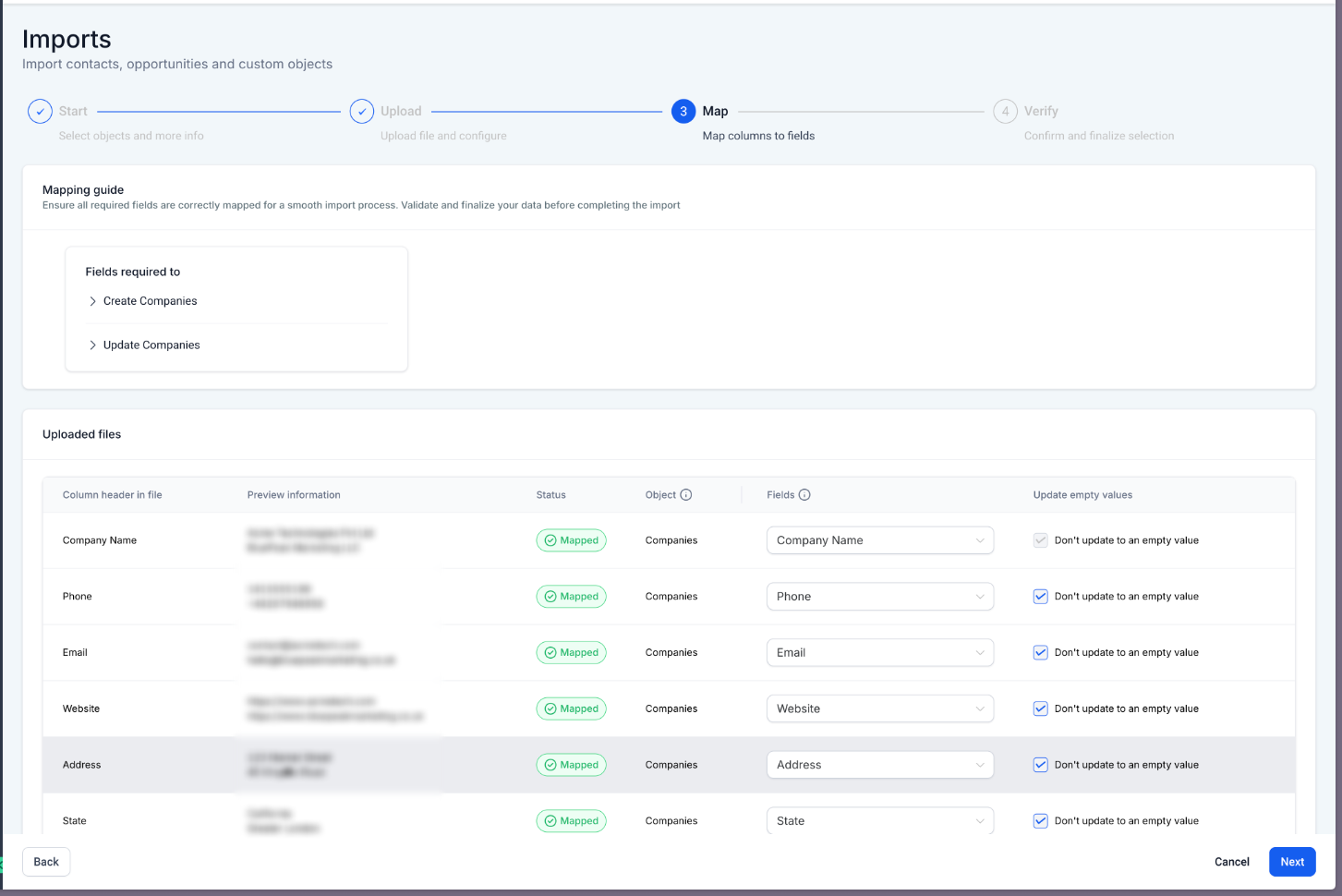
Step 4Map CSV Columns to CRM FieldsThe wizard displays a preview of your CSV data alongside available CRM fields. Match each CSV column to the corresponding company field in Open Doors. For example, map a column named "Company Name" to the CRM field "Name".
If you want to prevent blank CSV cells from overwriting existing data, enable Don't update to empty value for specific fields.
 Step 5Review and Verify
The verification screen displays a summary of your import configuration, including the number of rows to import, field mappings, and duplicate handling rules. Review all settings carefully before proceeding.
Step 6Start the ImportClick Start Bulk Import to begin processing. The system processes your file in the background and provides progress updates in the Bulk Actions, Companies dashboard.
Pro TipAlways Test with a Small Sample FirstBefore importing thousands of records, run a test import with 5 to 10 rows to verify field mappings and duplicate handling behavior. This prevents large-scale errors and data overwrites.5Tracking and Monitoring Import Progress
After you start a bulk import, Open Doors processes your file in the background and displays real-time status updates in the Bulk Actions, Companies dashboard. This section shows all active and completed imports with detailed statistics.
Accessing Bulk ActionsNavigate to the Tracking DashboardGo to Companies, then click Bulk Actions, Companies from the top menu or action bar. This page lists all import jobs with timestamps and status indicators.
Import StatisticsUnderstanding the BreakdownEach import displays three key metrics:
- Success, Number of records successfully created or updated without errors.
- Error, Number of records that failed to import due to validation issues or system errors.
- Warning, Number of records imported with minor issues, such as missing optional fields or formatting concerns.
After an import completes, click the Download Report button to receive a detailed CSV file containing row-by-row results. This report includes error descriptions, affected records, and suggested fixes for failed entries.
TipIf you see a high error count, download the report immediately to identify the root cause. Common issues include incorrect field mappings, invalid data formats, or missing required fields.
6Best Practices and Setup Tips
Following these best practices ensures accurate imports, minimizes errors, and protects your existing CRM data from accidental overwrites or deletions.
Tip 1Clean and Validate Your CSV Before UploadingRemove duplicate rows, fix formatting errors, and ensure all required fields (like Company ID) are populated. Use spreadsheet tools to check for blank cells or inconsistent data types before import.
Tip 2Review Field Mappings CarefullyDo not rush through the mapping step. Verify that each CSV column is matched to the correct CRM field. Incorrect mappings can result in data being written to the wrong fields or rejected entirely.
Tip 3Enable "Don't Update to Empty Value" for Critical FieldsIf your CSV contains blank cells for certain columns, enabling this option prevents those blank values from overwriting existing data in Open Doors. This is especially useful for partial updates or incomplete datasets.
Tip 4Test with a Small Batch FirstBefore importing thousands of records, run a test import with 5 to 10 sample rows. Verify the results in your CRM, check the import report, and confirm that mappings and duplicate handling work as expected.
Tip 5Download and Archive the Import ReportAfter each import, download the detailed report and save it for your records. This report is invaluable for troubleshooting, auditing, and identifying patterns in failed or warning records.
WarningBulk imports cannot be undone. Always back up your existing company data before running large-scale updates or replacements. If you accidentally overwrite critical fields, you will need to manually restore the data or re-import from a backup.
7Frequently Asked Questions
Q: Is there a limit on the number of companies I can import at once?While Open Doors supports large CSV imports, performance may vary based on file size and system load. For best results, limit individual imports to 10,000 rows or fewer. If you need to import more, split your CSV into multiple batches.Q: Can I roll back an import if I make a mistake?No, bulk imports are final and cannot be automatically rolled back. To reverse changes, you must manually delete or update the affected records, or re-import from a backup CSV file. Always test imports with a small sample before running large batches.Q: What happens if my CSV contains duplicate Company IDs?The system processes each row sequentially. If multiple rows in your CSV share the same Company ID, only the last occurrence in the file is applied. To avoid this, remove duplicate IDs from your CSV before uploading.Q: Can I import custom fields for companies?Yes, custom fields are supported in the import wizard. During the field mapping step, your custom company fields appear alongside standard fields. Map CSV columns to these custom fields just like any other CRM field.Q: What file format is required for bulk import?Open Doors accepts CSV (comma-separated values) files only. Ensure your file uses UTF-8 encoding and includes a header row with column names. Excel files (.xlsx) are not supported; export them to CSV before uploading.Q: Will empty cells in my CSV overwrite existing data?By default, yes. If a CSV cell is blank and you have not enabled "Don't update to empty value" for that field, the import overwrites the existing CRM data with a blank value. To prevent this, enable the option during field mapping.Q: Where can I find the Company ID for existing records?You can export your current company list from Open Doors to obtain Company IDs. Go to Companies, select Export, and download a CSV containing all company records with their IDs. Use this as a reference when preparing your import file.Q: Can I schedule bulk imports to run automatically?No, bulk imports are currently manual. You must upload and configure each import through the Open Doors interface. Scheduled or automated imports via API may be available in future releases.Need Help?If you encounter issues during bulk import or need additional support, follow these steps:
- Download the import report from Bulk Actions, Companies to identify specific error rows.
- Check the Help Center for articles on CSV formatting and field requirements.
- Contact support via the in-app chat if errors persist or if you need guidance on complex field mappings.
- Review the verification screen carefully before submitting large imports to prevent widespread errors.